Configuration
This section explains each option and parameter available in MCx PDI Builder.
Once the installation is finished, open MCx PDI Builder and login

Authentication is required before any operation.

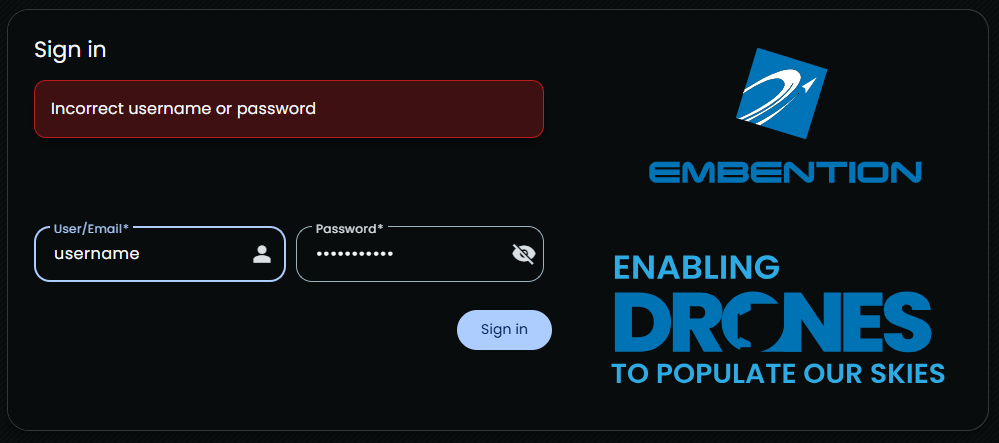
After clicking Sign in, a new window will open for users to enter their credentials. If users do not have credentials, do not know what they are or have any problems logging in with them, please contact the support team via the Joint Collaboration Framework opening a Ticket or contact sales@embention.com.
If the login is successful, the screen will change as shown below:

Warning
If incorrect credentials are entered, the system will display the error message Incorrect username or password.
Once logged in, select the desired unit.

If the MCx is correctly connected, MCx PDI Builder will display the mode in which the connected unit is. In addition, a PDI error button  will appear:

-
MCx mode: The MCx unit should appear in Normal mode, as shown in the figure above, or Maintenance mode.
It can also appear as Maintenance mode (loaded with errors) or Normal mode - Disconnected.
Note
Maintenance mode (loaded with errors) appears when something is wrong in the configuration.
-
PDI Errors button: The user can check if the connected unit has PDI Errors by simply clicking on it. If there are no errors, the following message appears:

MCx PDI Builder - PDI Errors message
The user can access now to 3 configuration options:

- MCx: It allows the user to work with offline configurations. A previously exported MCx PDI configuration can be opened and modified or it is also possible to build a new one from the default configuration.
-
Upload PDI: A previously exported MCx PDI configuration can be imported to the current MCx flash memory.
Warning
When a configuration is loaded into MCx with a version older than the software version being used, an automatic migration from the configuration version to the software version being used will be performed. For more information on this, see the Migrate configuration - Troubleshooting section of this manual.
-
Open MCx: By clicking on this option, MCx PDI Builder configuration menu opens with the configuration (the PDI files) loaded in the MCx.
Then, the user can modify it online.
Note
These PDI files are the files that contain the configuration of the MCx. They are used by modular control with improved version management.
These files are located in a single folder, setup, which contains several .xml files, where all parameters and the control system are stored.
Finally, click on 'Open MCx' to open the configuration and start editing online.

Note
When MCx PDI is open, the unit changes to Maintenance mode.
The different 'buttons' that can be seen in the initial menu of the MCx PDI builder are explained below.

-
Save PDI: After changes are done, press on the save button to apply the changes.
Note
This button will only appear if a MCx is connected, i.e. when working offline this button will not be available.
-
Downloads: After modifying a configuration, press the Downloads button to store the configuration in the local storage.
Users can store this configuration in an empty folder or in the folder where the previously imported configuration is stored. With the latter option, the "original" configuration will be overwritten by the one with the new changes.
The user can choose between:
- Download PDI: With this option, the folder with the PDI files is downloaded.
- Download backup file: Download a .backup file with the configuration in binary.

Download option Note
Depending on the mode the user is in, this option works differently. In online mode, the option Download backup file is always available. While in offline mode, in order to be able to download
.backup, it is needed to have previously imported a.backupfile (since this file has more information).Warning
The
.backupfiles are specific and unique to each MCx, therefore, they cannot be interchanged. If a.backupfile is uploaded into a different MCx, the existing configuration will be overwritten.If the PDI or backup file has been downloaded successfully, the following message appears:

Downloads - Successfully exported message -
Import PDI from repo: The user can import a configuration file from the repo and modify it. After that, if the save button is pressed, this configuration will be uploaded to the connected MCx.
-
Import PDI from local storage: The user can import a configuration file from the local storage and modify it. After that, if the save button is pressed, this configuration will be loaded into the connected MCx.
-
These are the different functions of MCx. They are explained in the following menus:


Each panel features the following icon  .
.
By clicking it, the system displays technical details and the names of the XML files associated with specific configuration parameters. Upon clicking, the system shows the unique identifiers and file paths required for diagnostics and data consistency verification within the software, as shown in the following example:

© 2026 Embention. All rights reserved.