Safety
The Safety menu groups features dedicated to system health monitoring and the execution of emergency procedures according to proprietary and international standards.
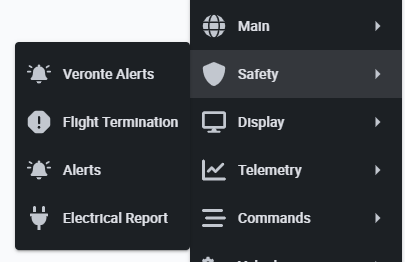
Veronte alerts
These alerts are bits variables that appear depending on the state of the bit, failure or success. The user can define in the widget configuration which of them will be the triggering state.
By default, alerts are "collapsed" into the widget, as the widget acts as a drop-down menu. However, users can quickly find out how many alerts there are and what type they are without having to drop it down thanks to the colored indicators in the form of pills:
- Red: Alerts on failure state
- Orange: Alerts in failure state and configured as warnings
- Green: Alerts in success state
- Grey: Alerts for which the necessary telemetry is not being received.
Note
- This color code is also extended to the displayed alerts.
- The alert type can be configured by accessing its edit menu.
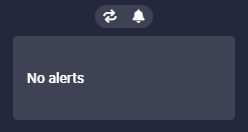
By hovering the mouse cursor over the widget, the following actions appear:
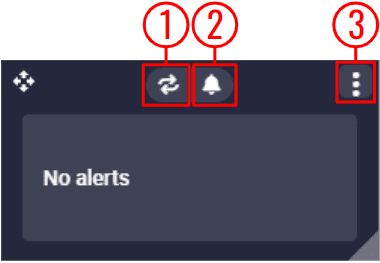
- Enable/Disable Loop: Users can enable/disable the sound of the alerts to be in loop, i.e. sounding continously.
- Mute/Unmute all alerts: The sound of all alerts can be mute/unmute.
-
Options:
- Duplicate: Duplicates this widget.
-
Edit: This allows the user to access the Alerts configuration menu.
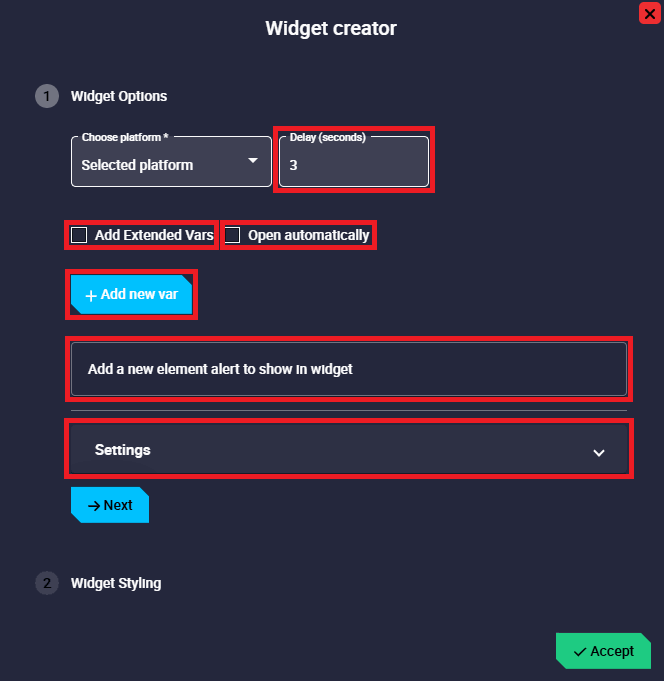
Alerts configuration -
Widget Options
This widget has extra edit parameters compared to the ones described in the Widgets common configuration.
- Delay: This is the time (in seconds) between the sounding of alerts when the loop option is enabled.
-
Open automatically: If enabled, Alerts widget will automatically "expand" when a configured alert is triggered.
Note
This check only takes effect when the widget is not deployed.
-
Add new var: Press this button to add a new alert variable. They are configured below.
-
Add a new element alert to show in widget: When adding a variable (by clicking on the 'Add new var' button), the following field is added to the configuration menu:
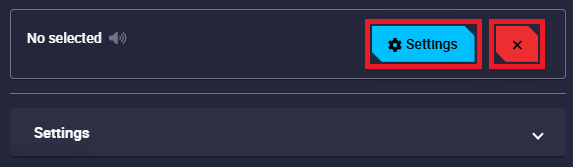
Alerts configuration - Variables Next, 2 buttons appear to configure the new variable added:
-
Settings var: Pressing this button takes the user to the configuration menu of the added variable:
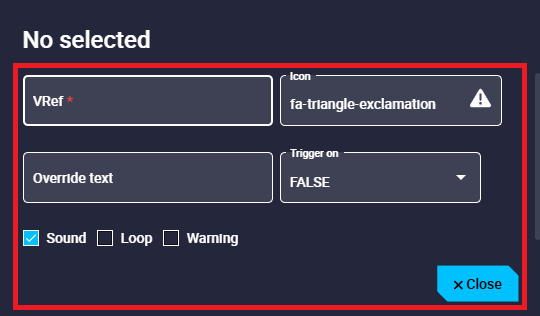
Alerts configuration - Variables settings - VRef: Users can select the desired bit variable to be displayed as an alert.
- Icon: Choose the icon to be displayed next to the variable. By default, it is an exclamation icon, as can be seen in the figure above.
-
Override text: The alert name can be changed by typing a new one different from the variable name.
Warning
This does not rename the selected variable in the configuration, it is only the name shown in the alert.
-
Minimun life time: Minimum delay before the alert activates.
- Trigger on: Users can choose when they want the alert to be displayed, when FALSE or TRUE. By default, FALSE is set.
- Sound: Here users can choose whether each alert sounds or not by simply enabling/disabling it. By default, it is activated.
-
Loop: If enabled, the sound of the selected alert will be looped with the delay time specified above.
Otherwise, the alert sound will only play when the alert is triggered.
For example, if the delay is set to 3 seconds, the loop option is enabled and the selected variable is in fail mode, the alert sound will sound every 3 seconds.
Important
This is only available when Sound is activated.
-
Warning: If enabled, the selected alert will be displayed in orange instead of red.
- Close: Save and close button.
-
Delete var.
-
-
Settings: Here the user can modify the settings common to all alerts:
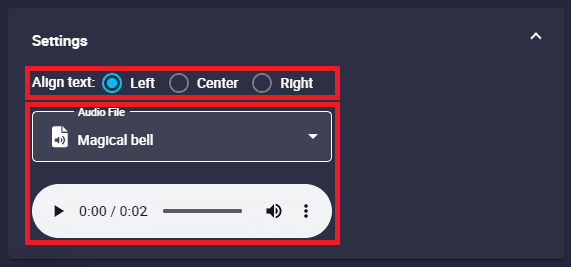
Alerts configuration - Settings - Align text: The variable text can be left, center or right aligned.
- Audio File: Users can select the audio of the alert from the audio list.
-
-
Remove: Deletes this widget.
Some examples of alerts are shown below:
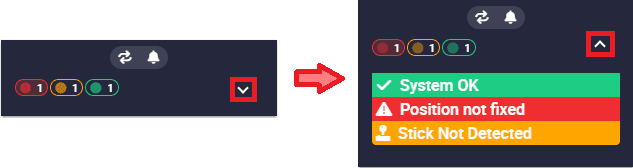
The following figures show how these alerts have been configured:
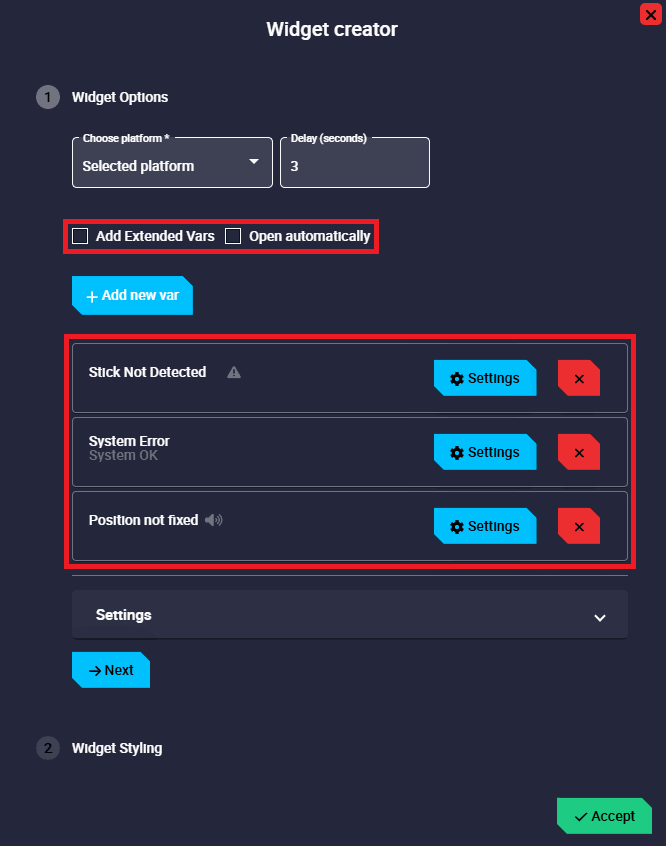
-
Stick Not Detected: This alert has been defined as a warning, its icon has been replace by another icon more related to the variable (a joystick icon) and has been configured without sound.
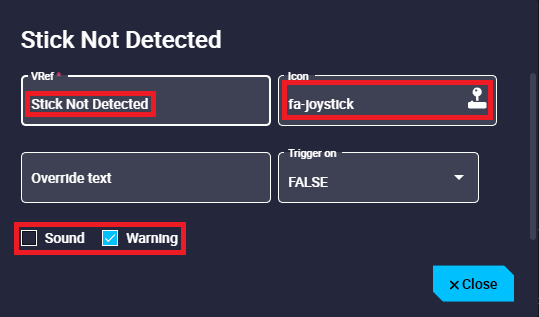
Alerts configuration example - Stick Not Detected -
System Error: This variable has been configured as an alert but it is triggered in successful state, so it is colored green.
In addition, it has been customized with a different text from the variable name, with a 'check' icon and no sound.
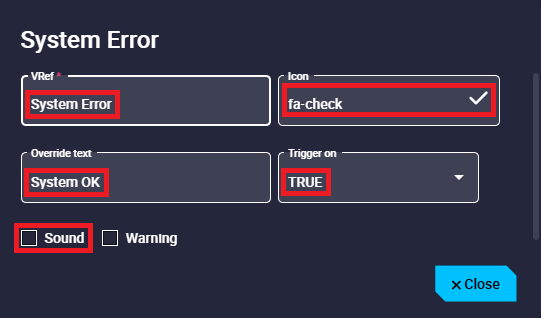
Alerts configuration example - System Error -
Position not fixed: This alert has not been customized, it appears with the default configuration.
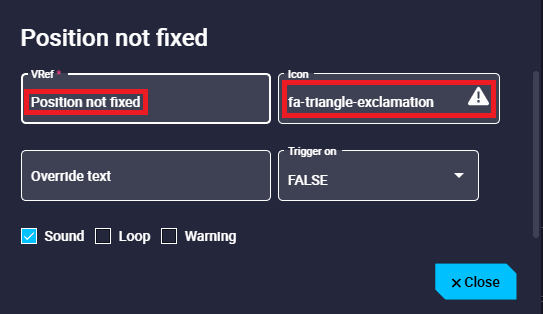
Alerts configuration example - Position not fixed
Flight Termination
Interface dedicated to executing the Flight Termination System command via the specific message defined by the STANAG standard.
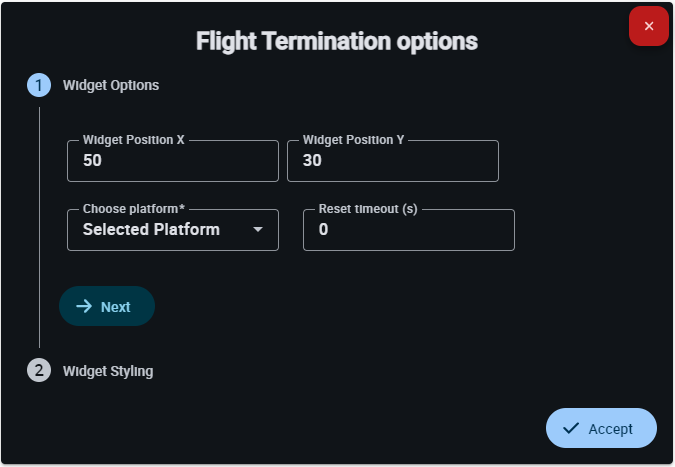
This widget has extra edit parameters compared to the ones described in the Widgets common configuration.
- Reset timeout (s): Specifies the time after which the command or widget status is reset.
Alerts
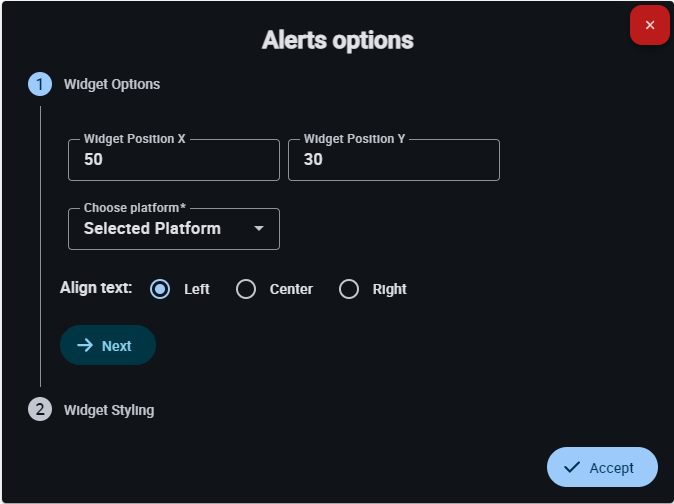
Alert panel compliant with the STANAG standard; it displays exclusively the messages defined by the international protocol.
Electrical Report
Tool based on STANAG messaging for real-time monitoring of the aircraft's electrical system parameters.
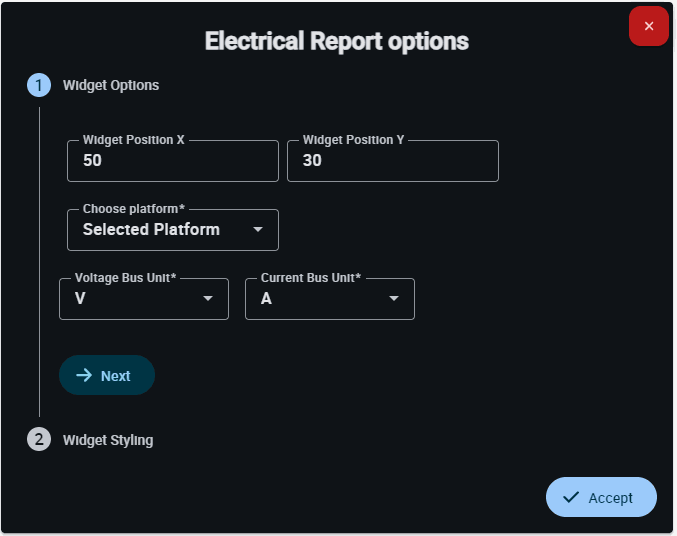
This widget has extra edit parameters compared to the ones described in the Widgets common configuration.
-
Voltage Bus Unit: Allows selecting the unit of measurement for the bus voltage between V and mV.
-
Current Bus Unit: Allows selecting the unit of measurement for the bus current between A and mA.
© 2026 Embention. All rights reserved.