Payload
Gimbal Buttons
Gimbal Buttons widget groups different control buttons of the selected gimbal into a single 'drop-down' button.

When clicked, the control buttons will appear/disappear.
Right click on the widget to access its options (Duplicate, Edit and Remove).
This widget has extra edit parameters compared to the ones described in Widgets common configuration.
-
Options Edit: This allows the user to access the Gimbal Buttons configuration menu.
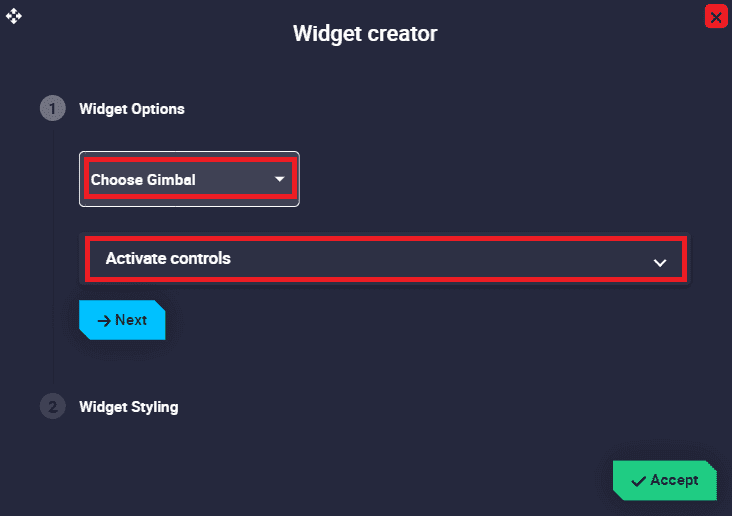
Gimbal Buttons configuration - Widget Options:
- Choose Gimbal: The user has to choose from the gimbal predefined list the gimbal for which the widget is configured.
-
Activate controls: Select the desired controls of the selected gimbal that will be displayed on the Gimbal Buttons.
Important
The controls shown here depend on the selected gimbal, each gimbal has its own control buttons.
- Widget Options:
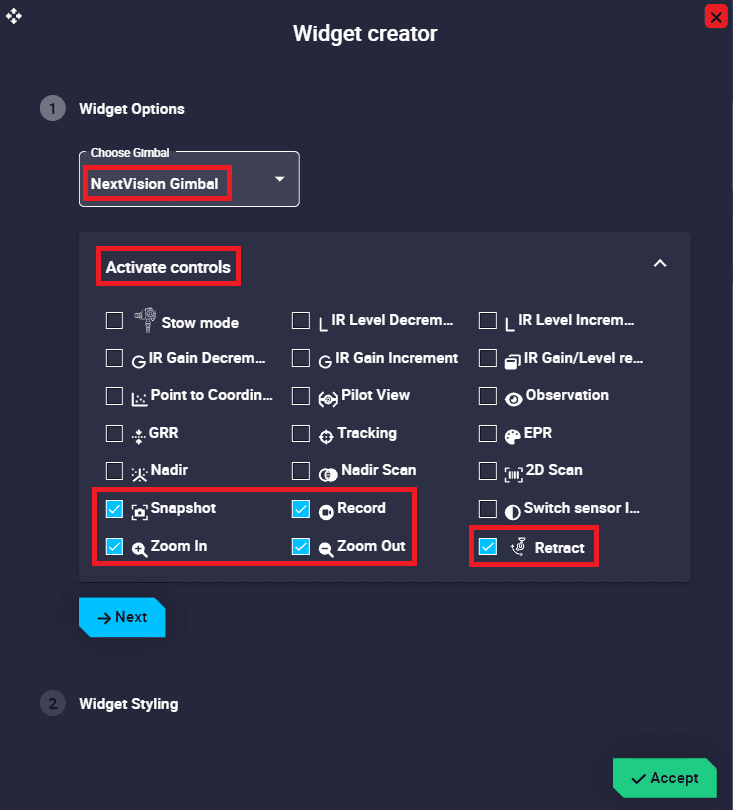
Below is an example with the NextVision gimbal:
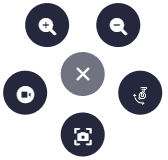
These control buttons can be enabled/disabled in the configuration:
Gimbal Setup
Gimbal Setup widget is a gimbal configuration panel, where the user can choose which gimbal controls can be managed from Veronte Ops.

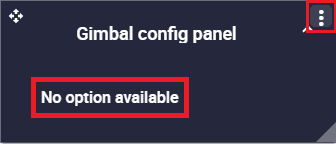
Note that, as this widget behaves like a drop-down menu, clicking on the  icon will display all gimbal controls:
Note
As no controls have been configured yet, No option available is displayed when deployed.
Click the  button to access its options (Duplicate, Edit and Remove).
-
Options Edit: This allows the user to access the Gimbal Setup configuration menu.
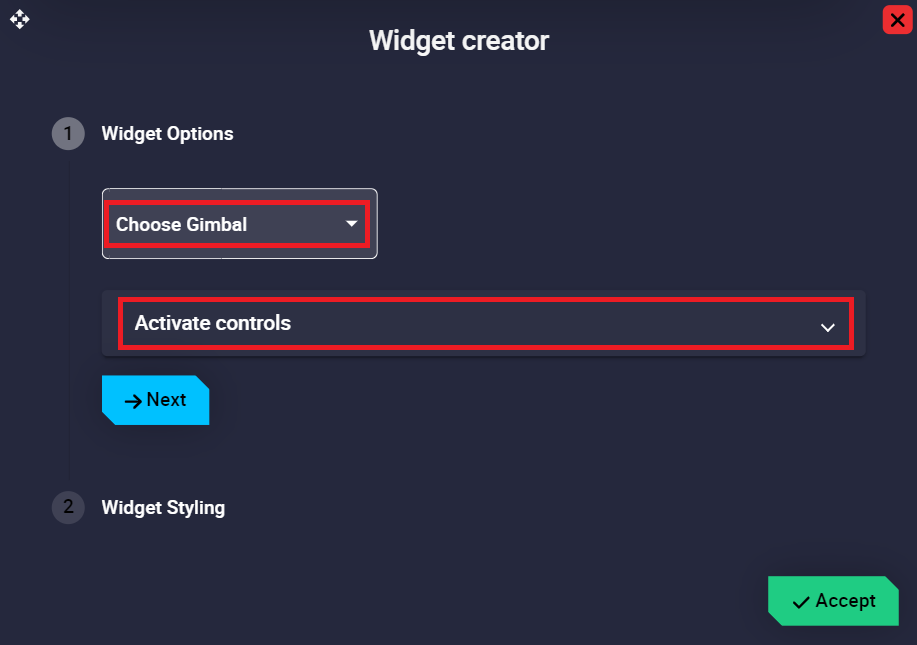
Gimbal Setup This widget has extra edit parameters compared to the ones described in Widgets common configuration.
- Widget Options:
- Choose Gimbal: The user has to choose from the gimbal predefined list the gimbal for which the widget is configured.
-
Activate controls: Select the desired controls of the selected gimbal that will be displayed on the gimbal configuration panel.
Important
The controls shown here depend on the selected gimbal, each gimbal has its own controls.
- Widget Options:
Below is an example with the NextVision gimbal:
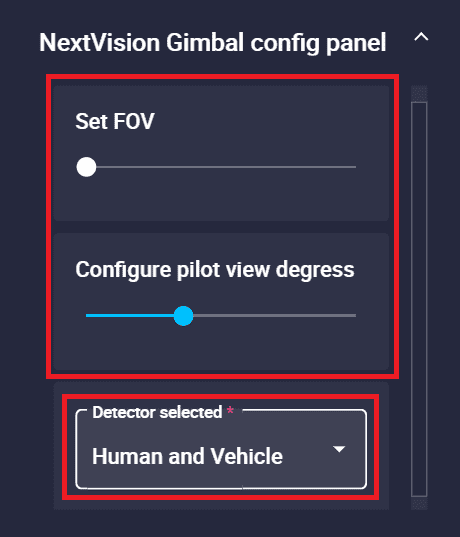
These controls can be activated/deactivated in the configuration:
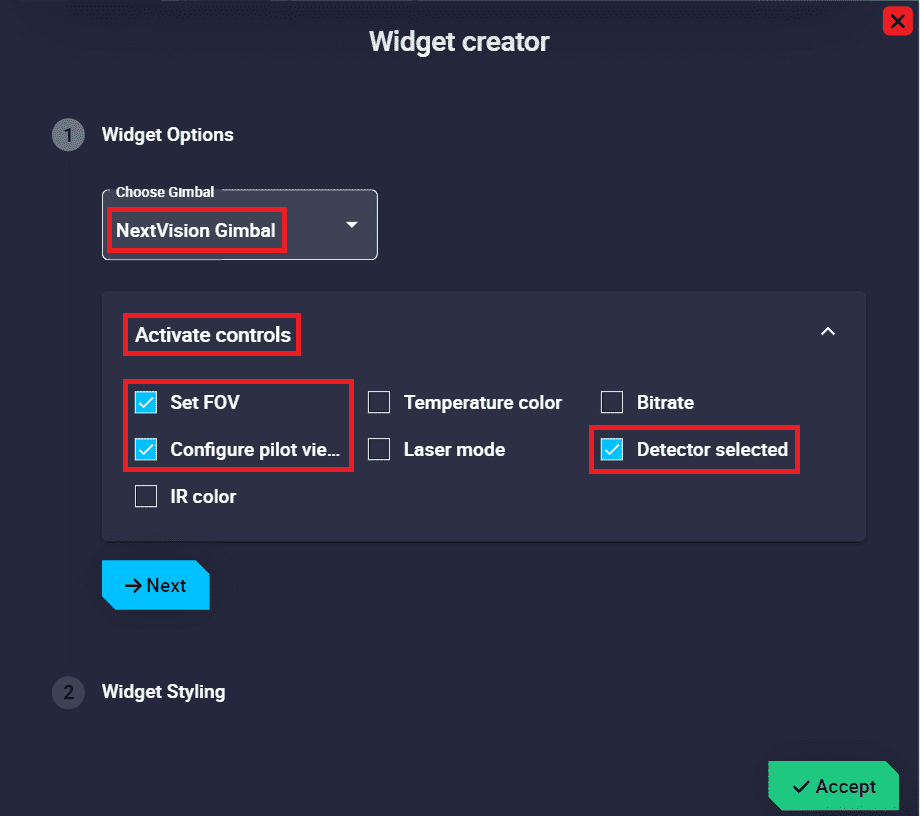
As can be seen in the example above, these controls can be in form of sliders, drop-down menus, etc.
Important
This will also depend on the pre-configured controls for each gimbal model.
© 2026 Embention. All rights reserved.