Vehicle
Lights
The Lights Options widgets allows the user to configure the position and data source for the lighting system widget.
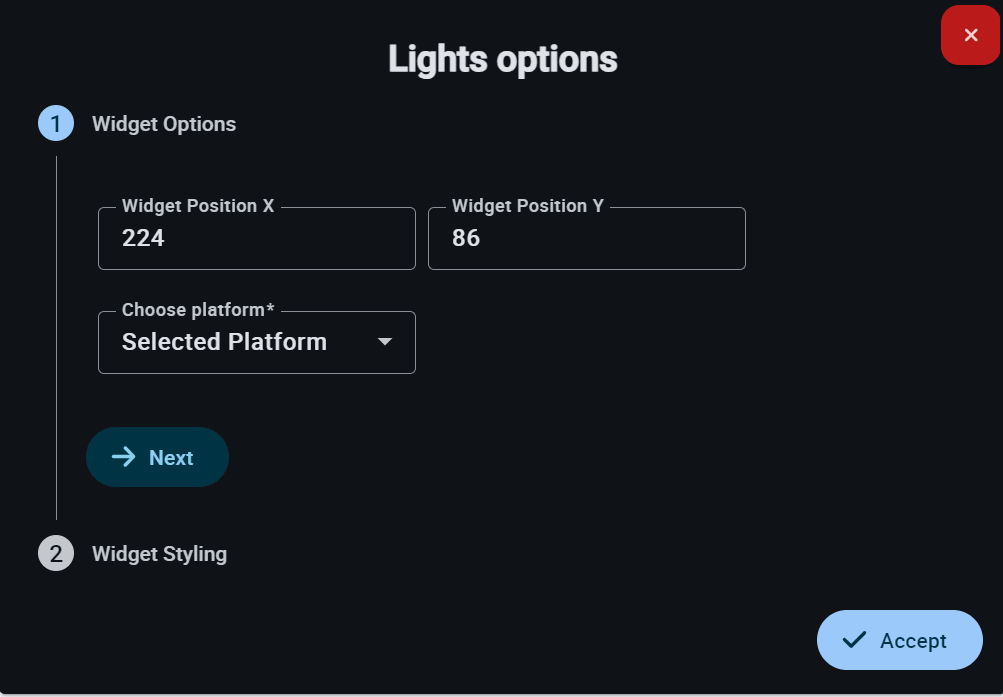
The parameters are described in the Widgets common configuration.
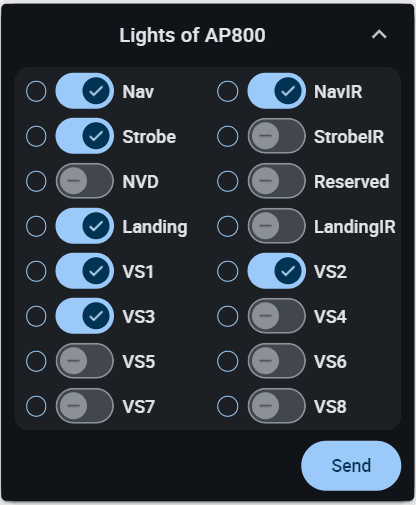
In the Lights widget, it is possible to select specific lights and click 'Send' to update the configuration.
Engine Command
Engine Command allows the operator to configure the location and data source for the engine control widget on the display.
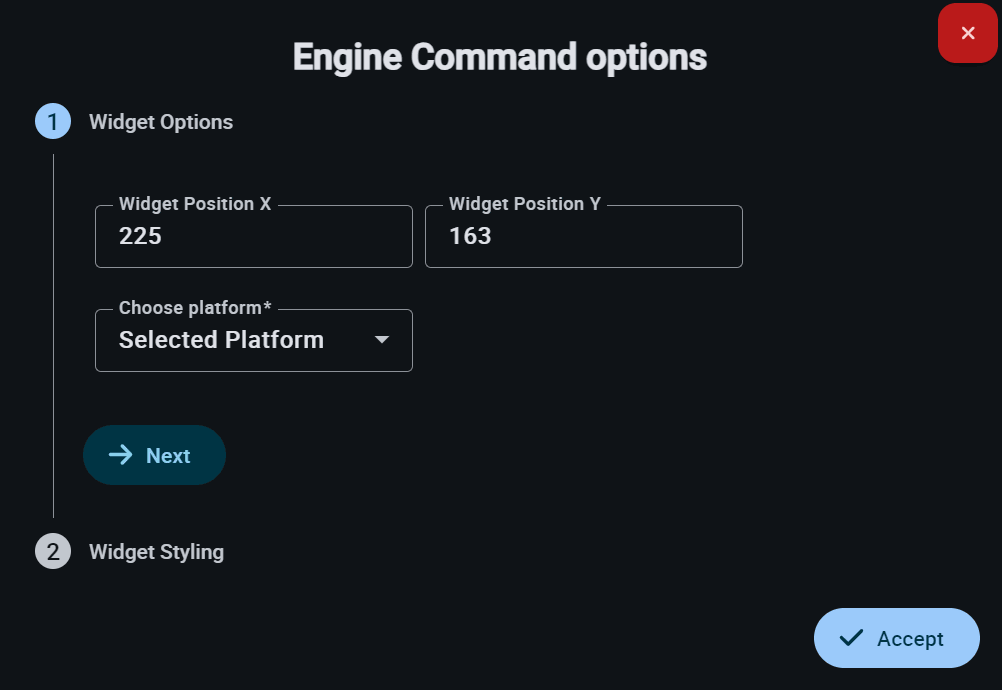
The parameters are described in the Widgets common configuration.
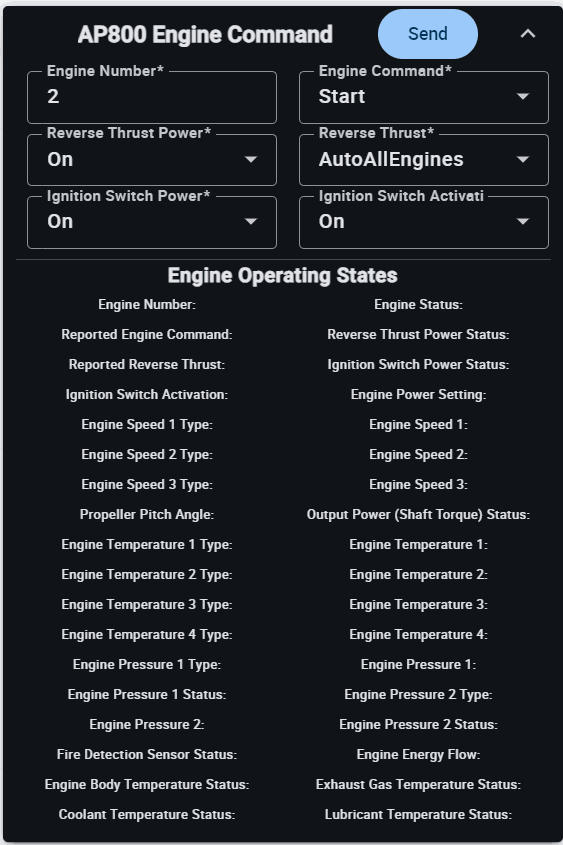
This widget is divided into two main functional areas: the Command Panel for active control and the Engine Operating States for detailed telemetry monitoring.
-
Engine Number: The numerical ID of the engine to which the command is directed.
-
Engine Command: The primary operational instruction (e.g., Start, Stop, EnableOrRun).
-
Reverse Thrust Power: Enables (On) or disables (Off) the electrical or hydraulic power to the thrust reversal system.
-
Reverse Thrust: Sets the mode for thrust reversal (e.g., OffAllEngines, OnAllEngine, AutoAllEngines), used to decelerate the aircraft after touchdown.
-
Ignition Switch Power: Controls the power supply to the engine's ignition circuit.
-
Ignition Switch Activation: The actual trigger to engage the ignition system
Click Send to update the configuration.
Battery Report
The Battery Report Options enables the user to configure the monitoring of the system's power parameters on the display.
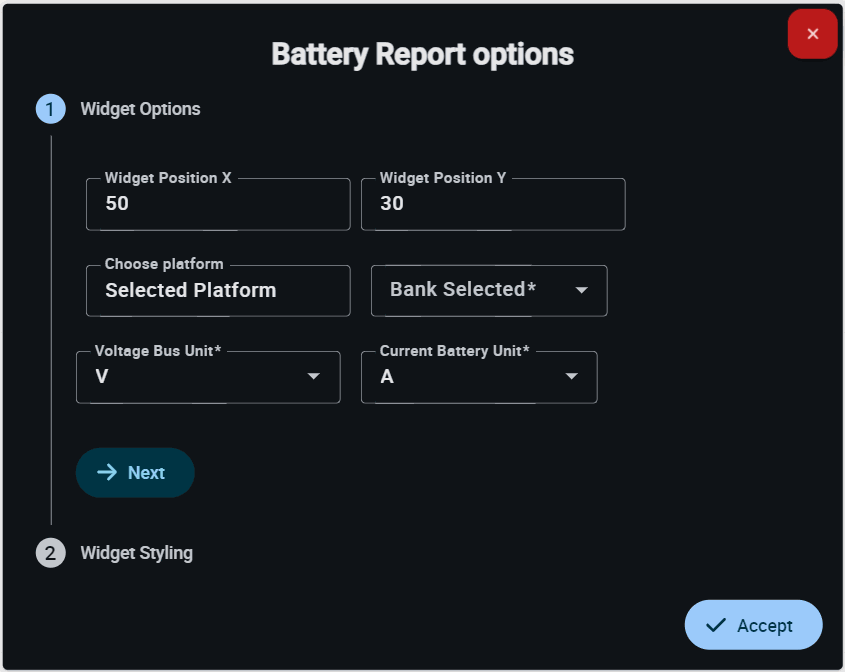
This widget has extra edit parameters compared to the ones described in the Widgets common configuration.
-
Bank Selected: Allows the user to select which bank or battery pack to monitor, in case the system features multiple independent units.
-
Voltage Bus Unit: Defines the measurement unit for the system's bus voltage in V or mV.
-
Current Battery Unit: Defines the measurement unit for the current delivered by the battery in A or mA.
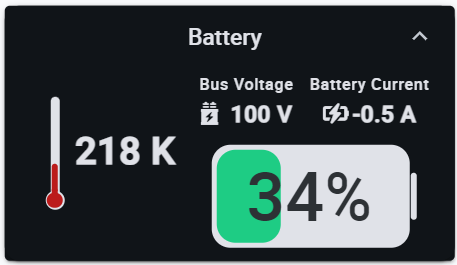
The Battery Report widget enables the user to monitor the system's power parameters in real-time.
Tanks Status
Tanks Status options allows the user to configure the monitoring of onboard tanks on the Display.
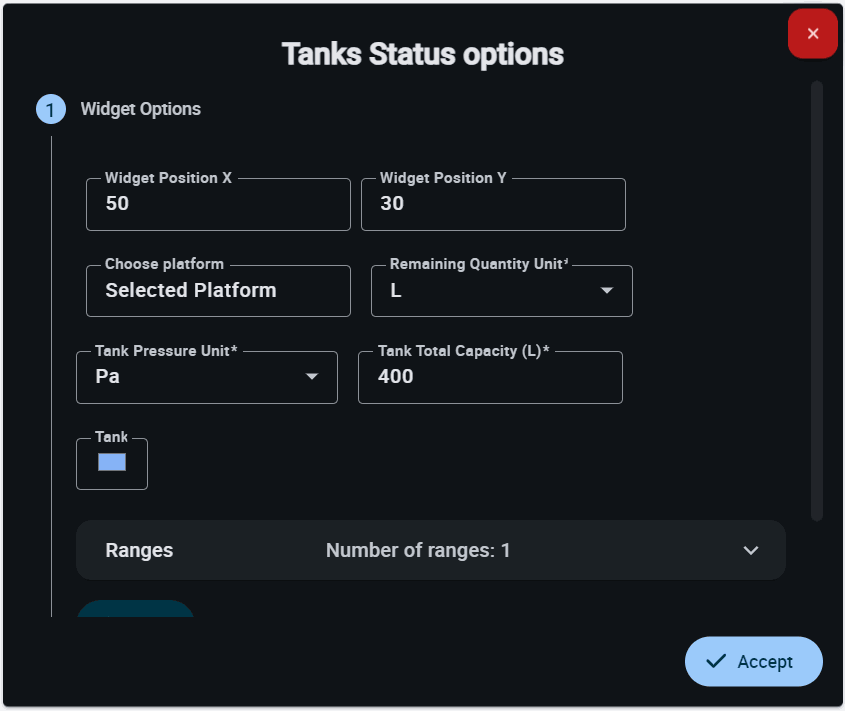
This widget has extra edit parameters compared to the ones described in the Widgets common configuration.
-
Remaining Quantity Unit: Defines the measurement unit for the remaining liquid quantity. It is possible to select one of the following units of measurement: m3, dm3, mm3, L, mL.
-
Tank Pressure Unit: Specifies the measurement unit for the tank's internal pressure. It is possible to select the units of measurement
-
Tank Total Capacity (L): Indicates the total maximum capacity of the tank expressed in liters.
-
Tank: Allows the user to select the representative color for the tank in the graphic interface.
-
Ranges: Allows the user to set different ranges.
Warning
The panel warns the user that for correct behavior, ranges must not intersect.
Several customizations can be made in the different ranges:
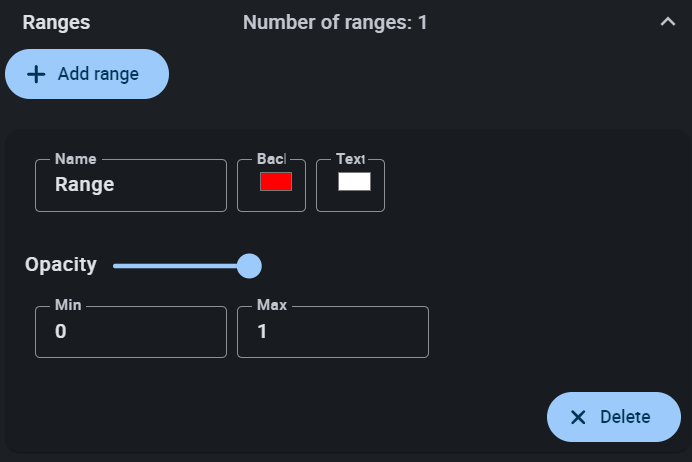
Tanks Status - Ranges - Name: An identifying name for the range can be set.
- Background color: Sets the background color of the widget when the tank level or pressure falls within this range.
- Text color: Changes the color of the label text when the variable is in this range.
- Opacity: The opacity of the circular arc can be customized in this range.
- Min/Max: Defines the minimum and maximum values of the range.
- Delete: Click to delete this range.
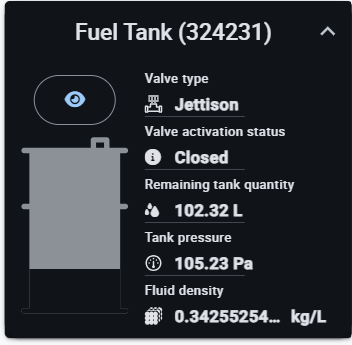
The Tanks Status widget provides the user with a real-time overview of the tank status and allows for direct interaction with the onboard fluid management system.
-
Valve Type: Indicates the hardware configuration of the valve.
-
Valve Activation: A control field to select the desired state of the valve (e.g., Closed or Open, Moving to Close or Moving to Open).
-
Remaining tank quantity: Displays the exact volume of liquid remaining in the unit.
-
Tank pressure: Shows the internal pressure of the tank.
-
Fluid density: Current density of the fluid, which is critical for calculating weight and balance.
-
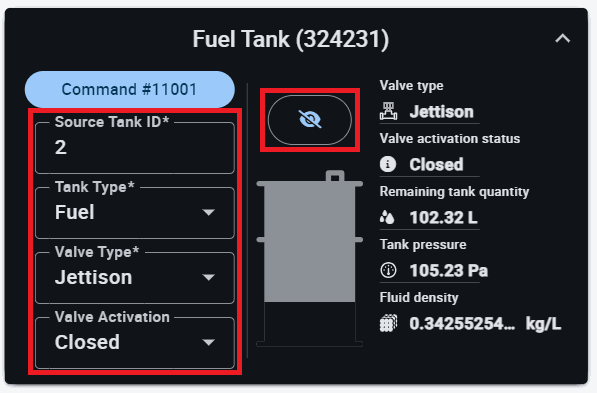
Status icon: Acts as a toggle to manage the visibility and configuration of the following parameters:
Widget icon -
Source Tank ID*: Used to define the unique identifier for the telemetry source.
-
Tank Type*: Allows the selection of the fluid type.
-
Valve Type*: Used to specify the hardware type of the valve.
-
Valve Activation: Enables the manual override or command of the valve stat (e.g., Closed or Open, Moving to Close or Moving to Open).
-
Vehicle Auxiliary
Vehicle Auxiliary options menu enables the user to configure the display of the vehicle's auxiliary data.
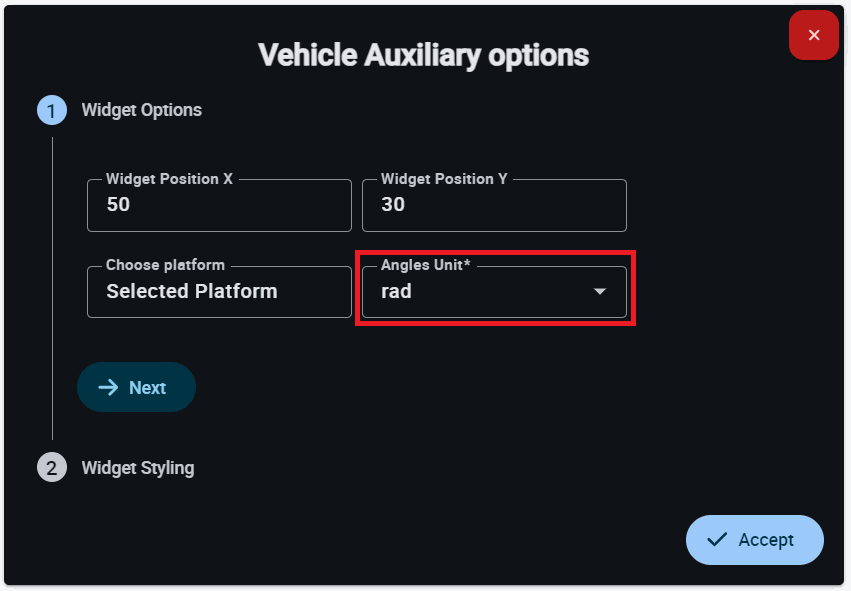
This widget has extra edit parameter compared to the ones described in the Widgets common configuration.
- Angles Unit: Defines the measurement unit for auxiliary angles on the display.
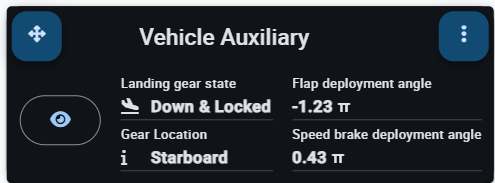
The Vehicle Auxiliary widget provides real-time monitoring of secondary mechanical systems.
-
Landing gear state: Displays the current mechanical status (e.g., Up or Down).
-
Flap deployment angle: Shows the current extension angle of the flaps.
-
Gear Location: Identifies which specific gear is being monitored.
-
Speed brake deployment angle: Shows the current position of the speed brakes.
-
Status icon: Acts as a toggle to manage the visibility and configuration of the following parameters:
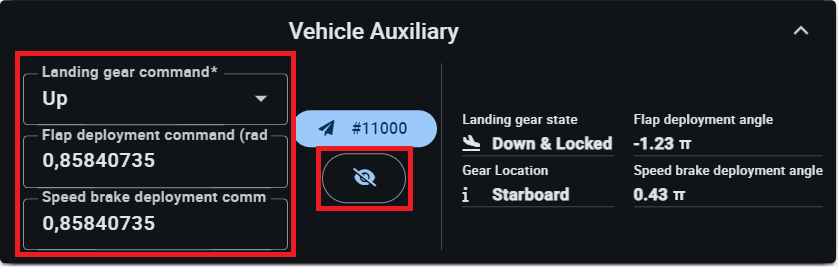
Widget icon
© 2026 Embention. All rights reserved.