Integration examples
CAN communication
MEX can send and receive messages via CAN.
CAN messages transmission

Users must follow the steps below to send telemetry via CAN and configure an Autopilot 1x to read this telemetry.
-
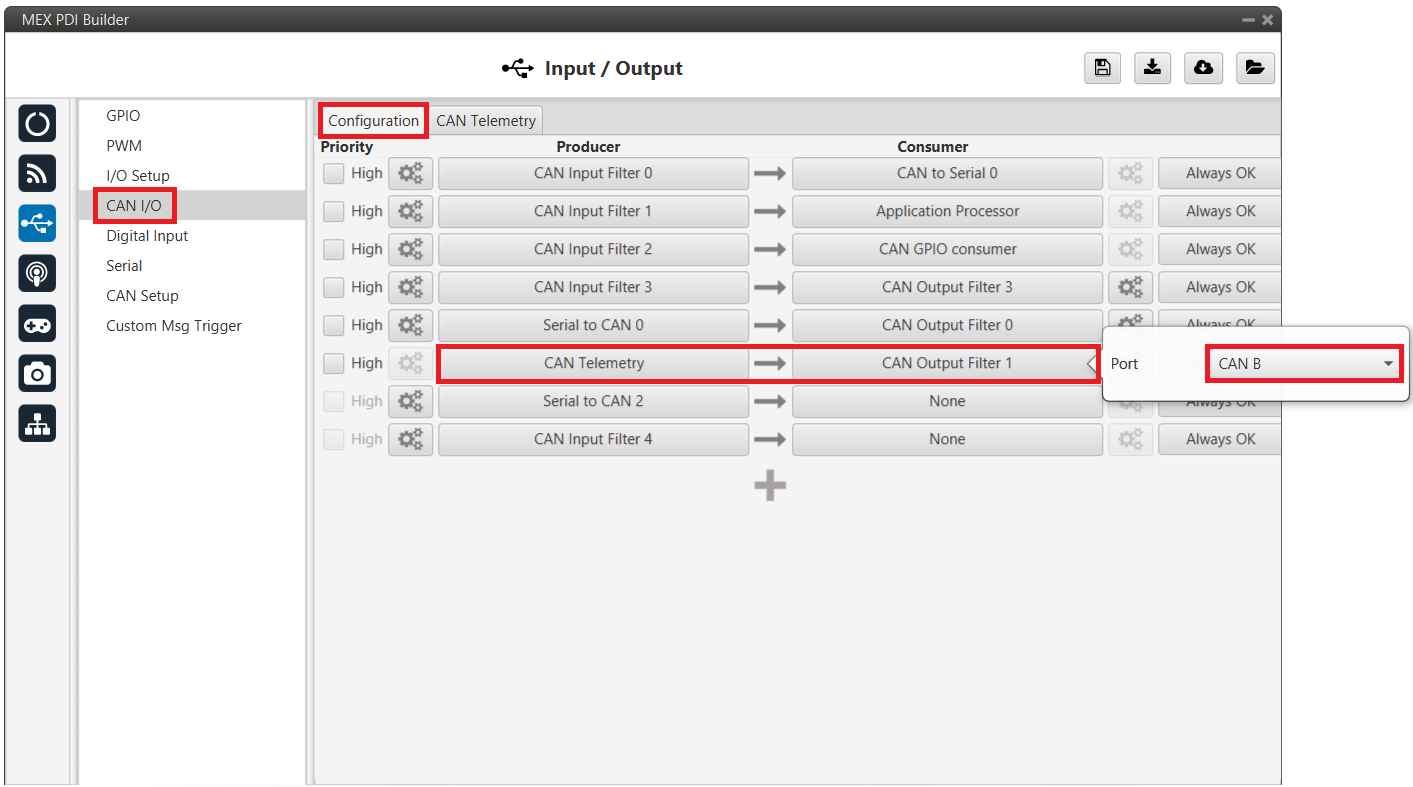
Go to Input/Output menu → CAN I/O panel → Configuration tab.
Connect CAN Telemetry to a CAN Output Filter as follows:
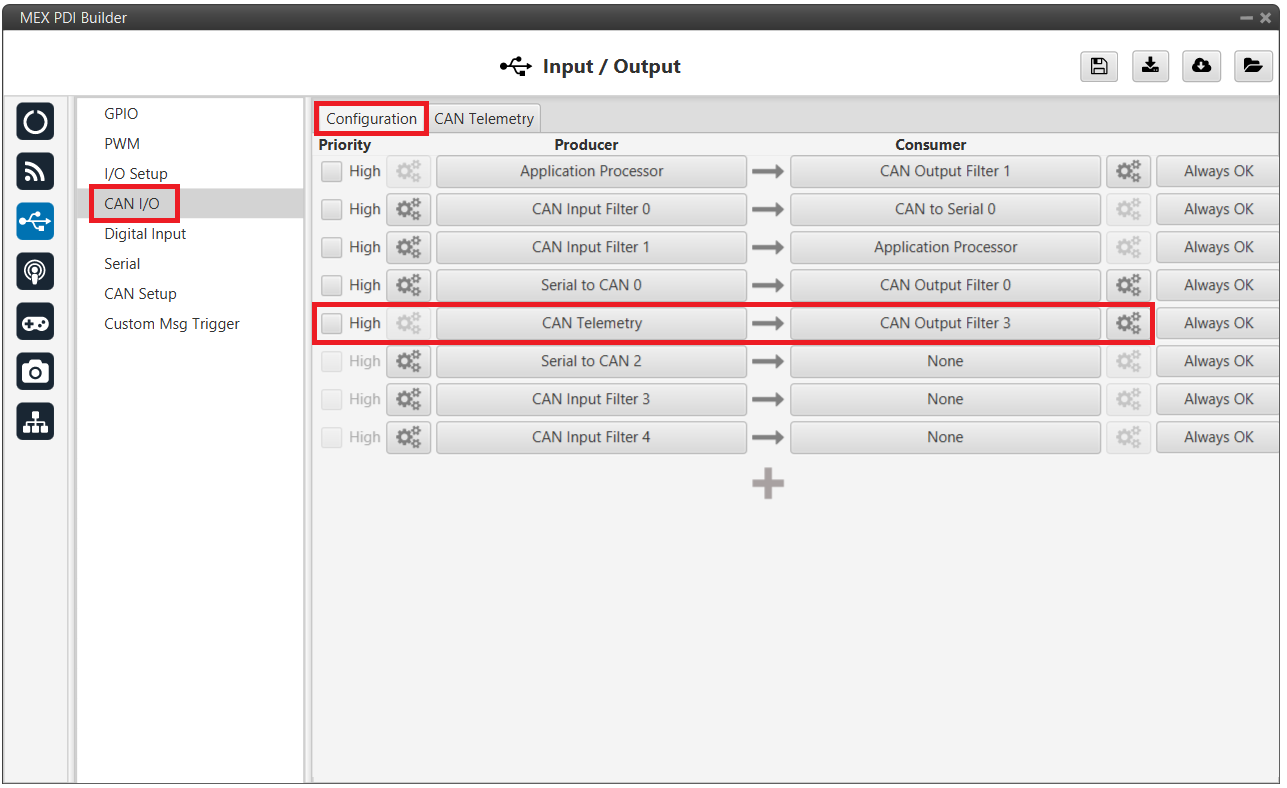
CAN messages transmission - CAN I/O configuration -
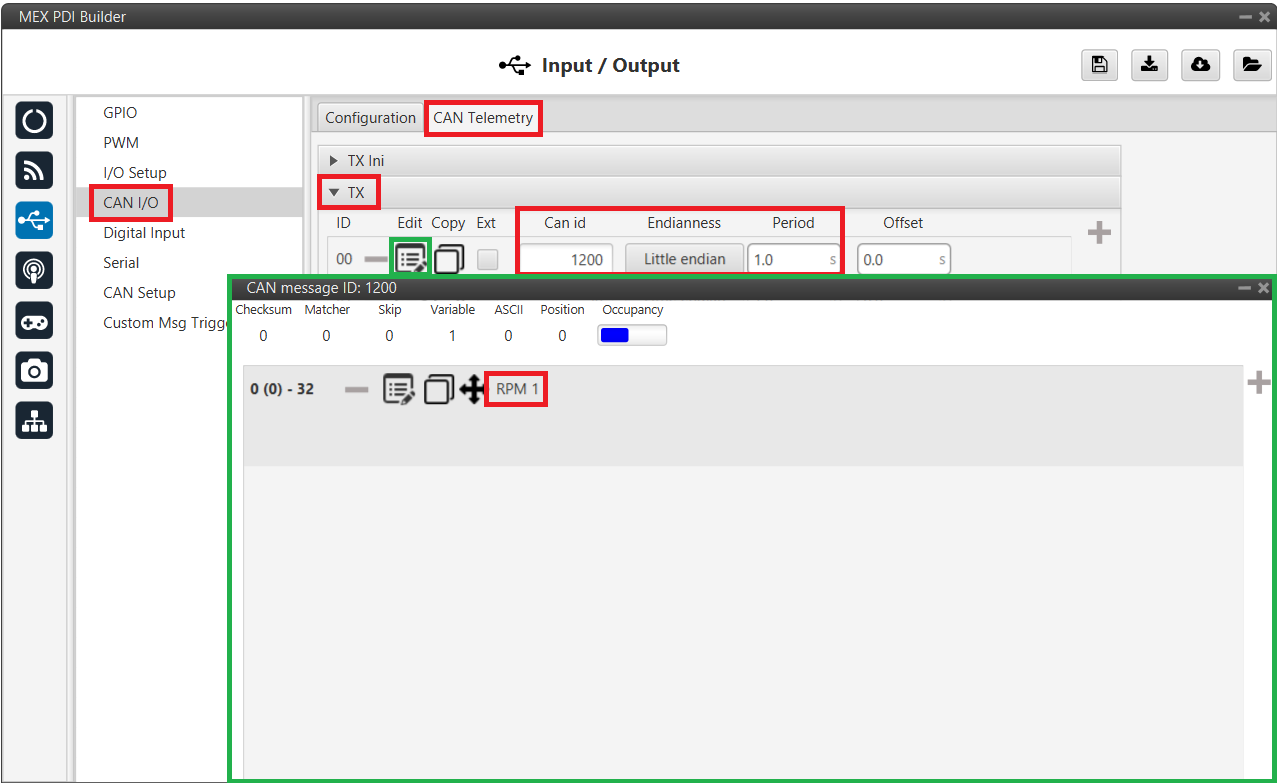
Go to Input/Output menu → CAN I/O panel → CAN Telemetry tab.
Select the fields to send in the TX. More information about the configuration of telemetry messages can be found in the CAN Telemetry - Input/Output section of this manual.
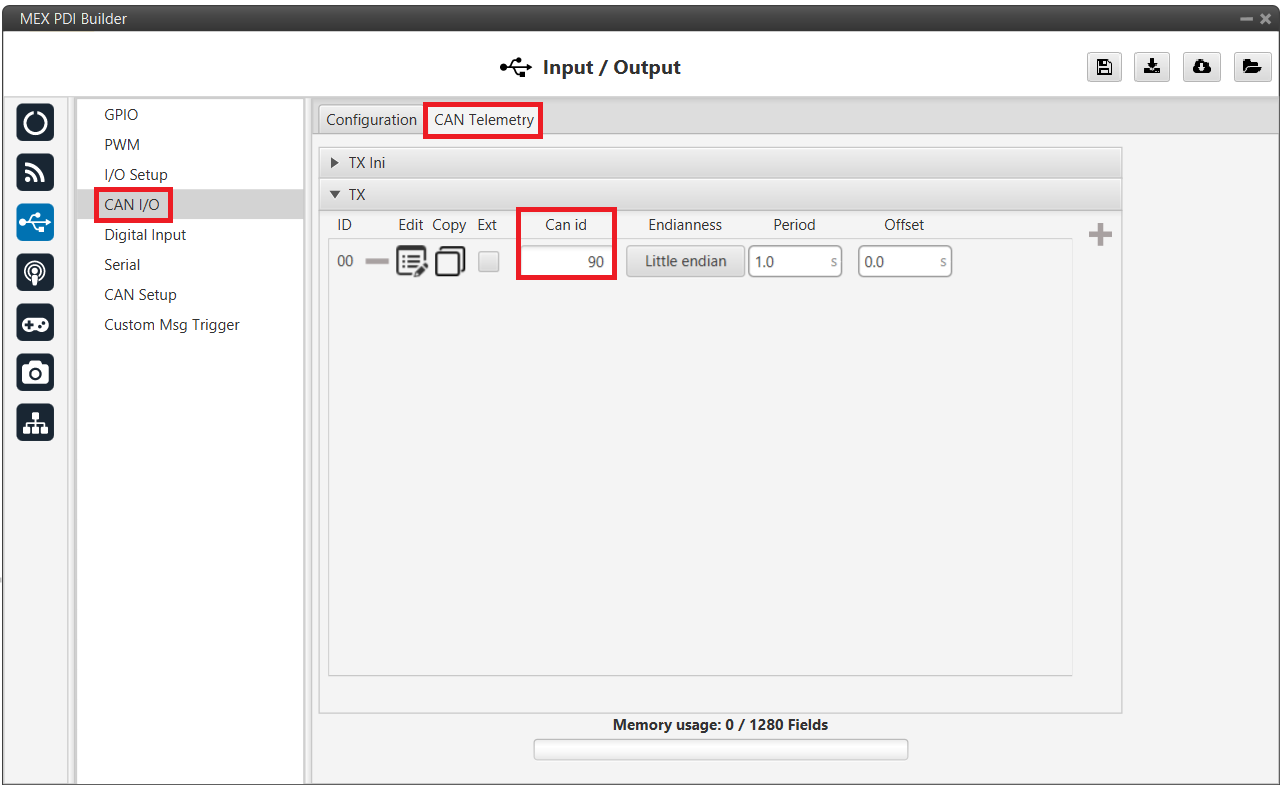
CAN messages transmission - CAN Telemetry For example, a telemetry message with a variable set to ID 90:
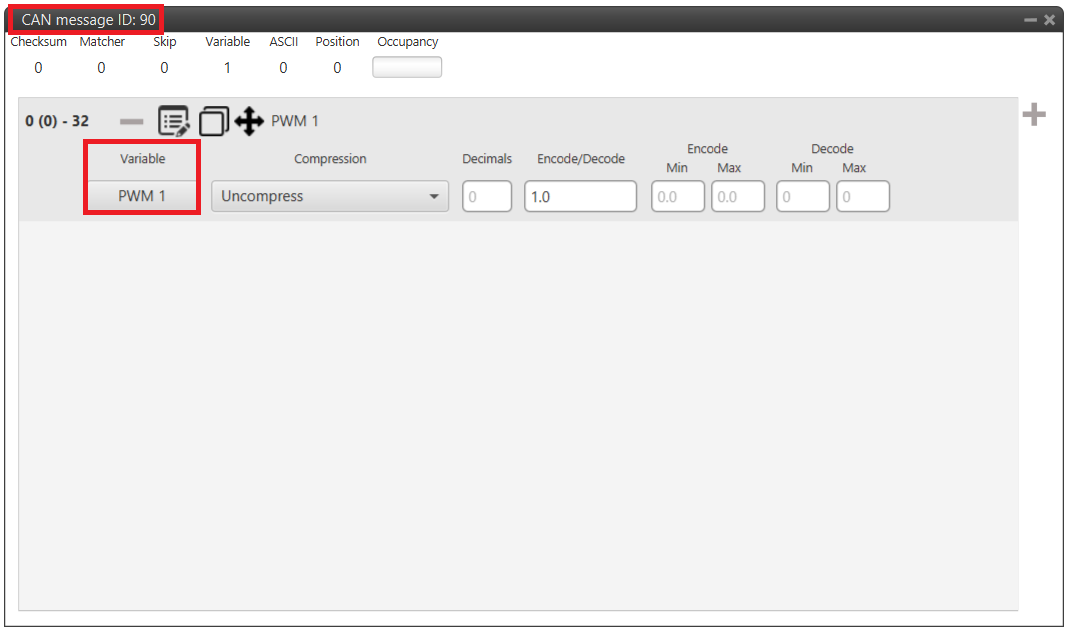
CAN messages transmission - CAN Telemetry example -
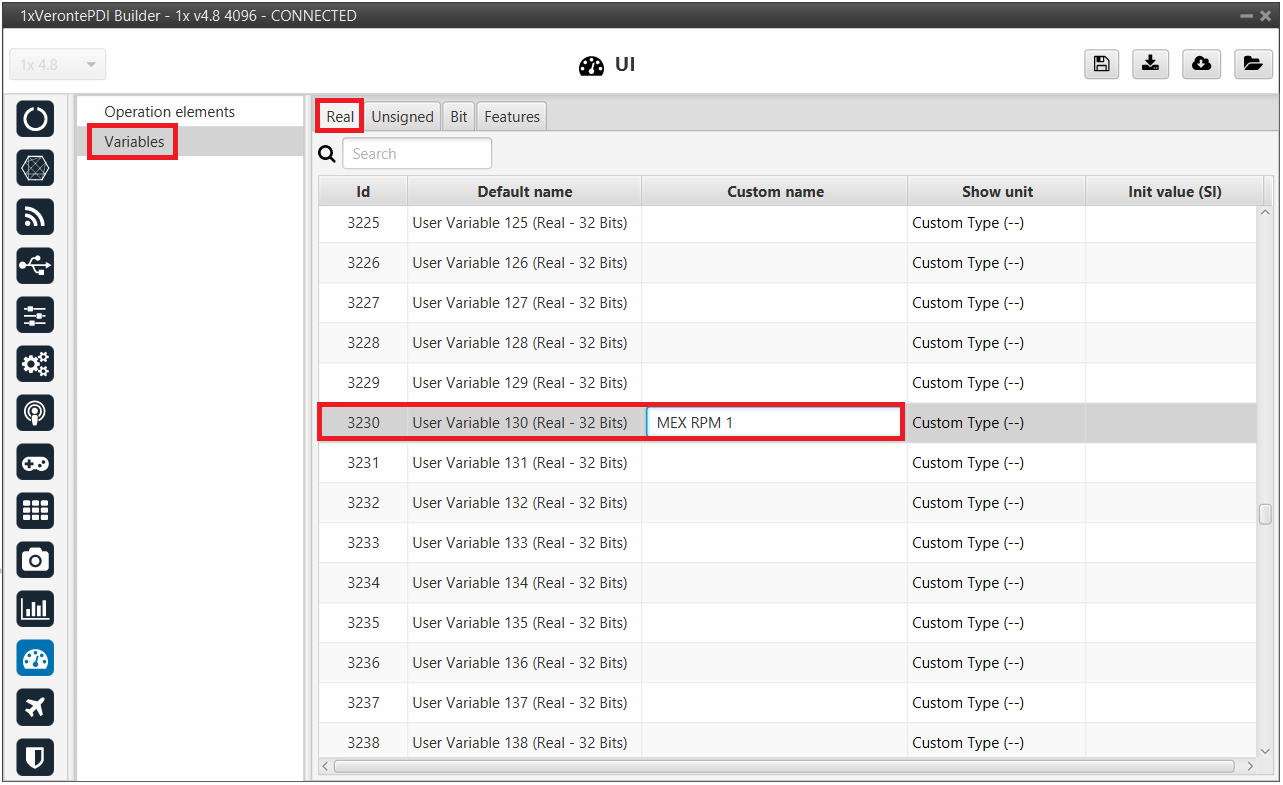
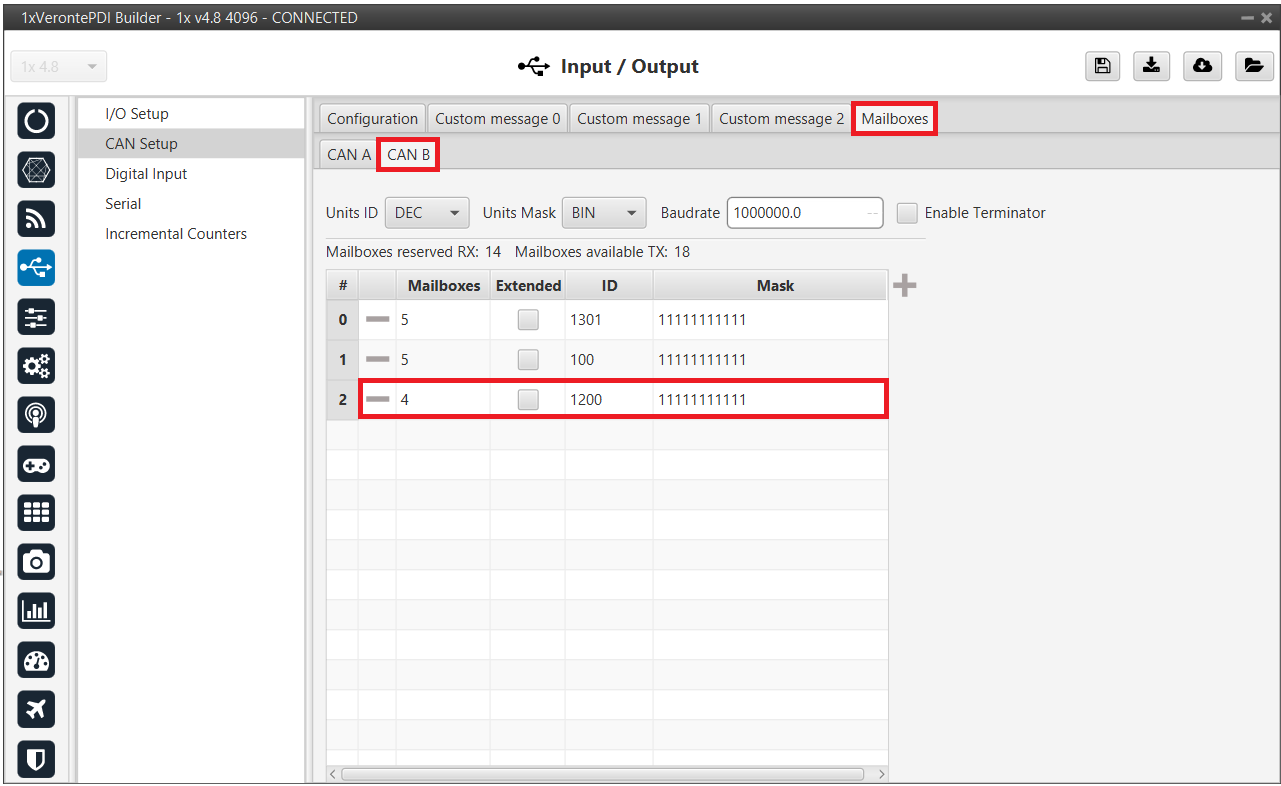
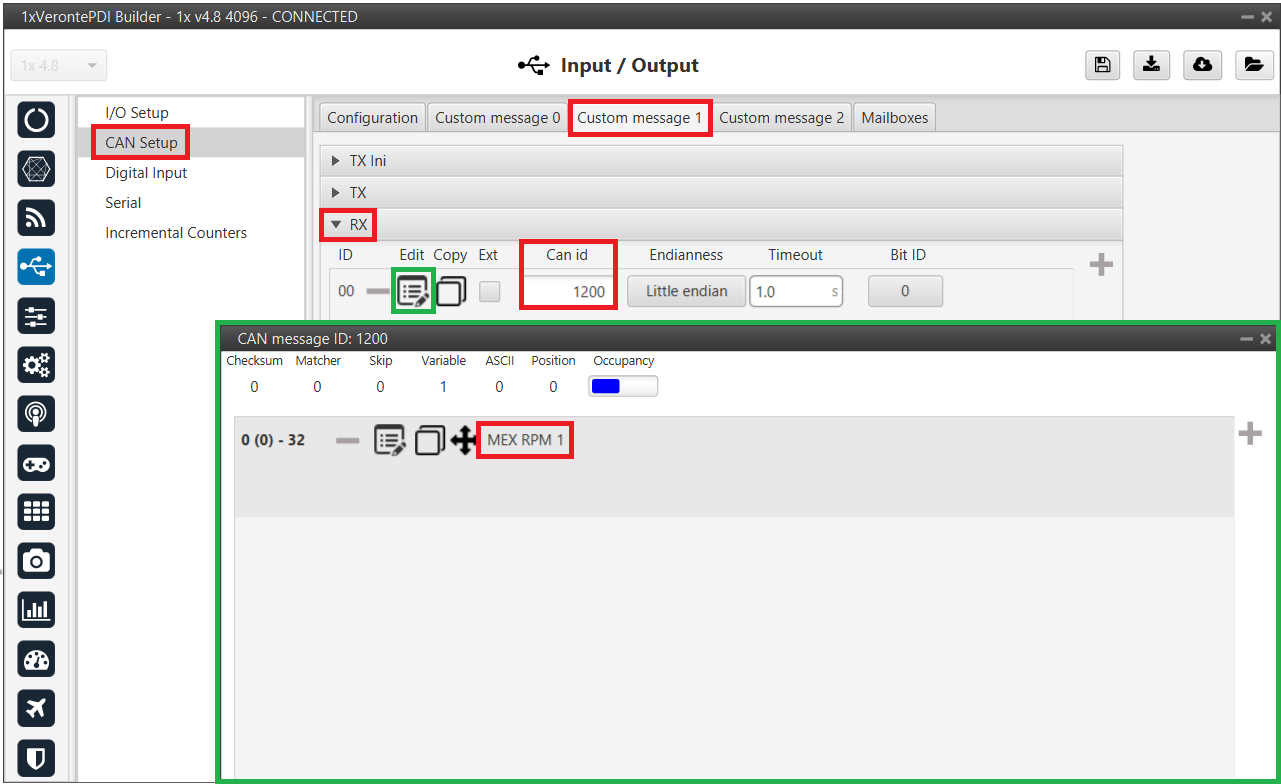
Configure the Autopilot 1x to read telemetry from MEX, following the CAN messages reception - Integration examples section of the 1x PDI Builder user manual.
Note
The configured CAN ID must match the one in MEX.
CAN messages reception

Users must follow the steps below to read CAN messages.
-
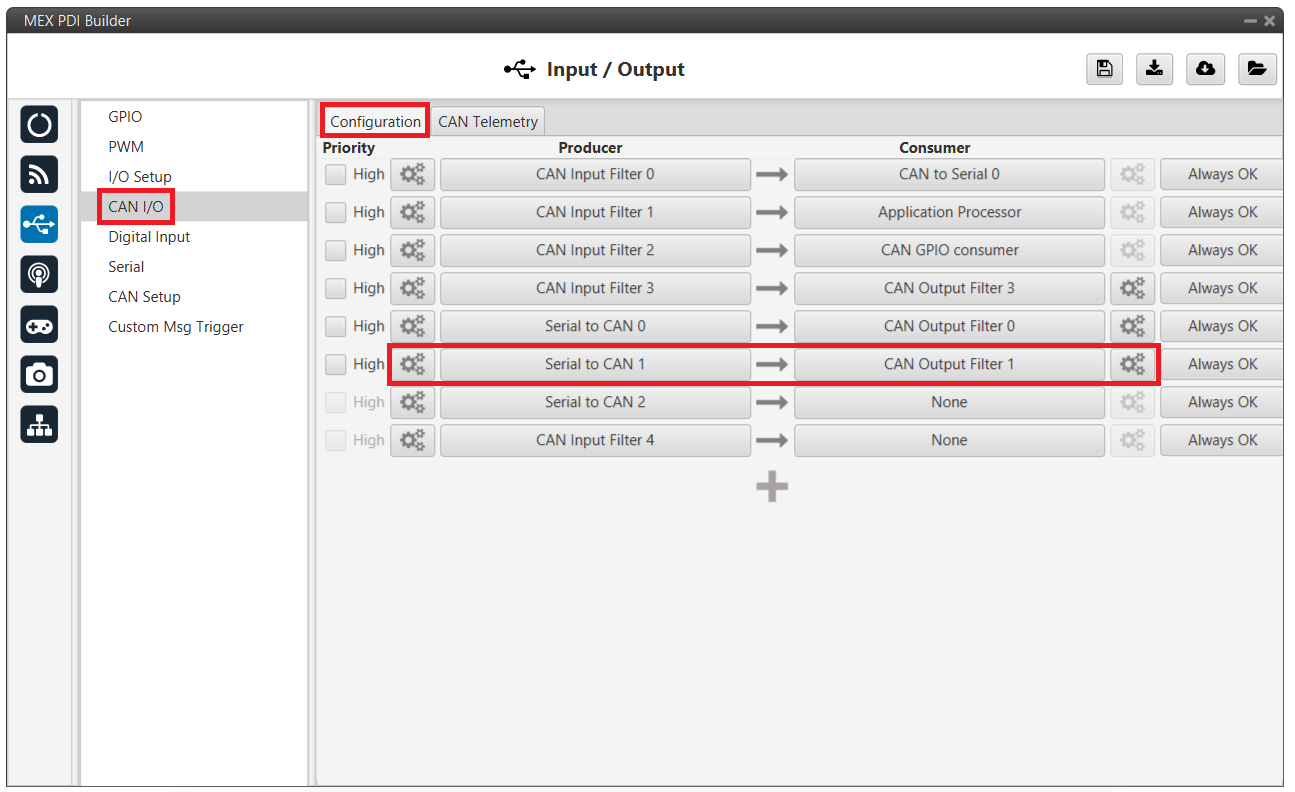
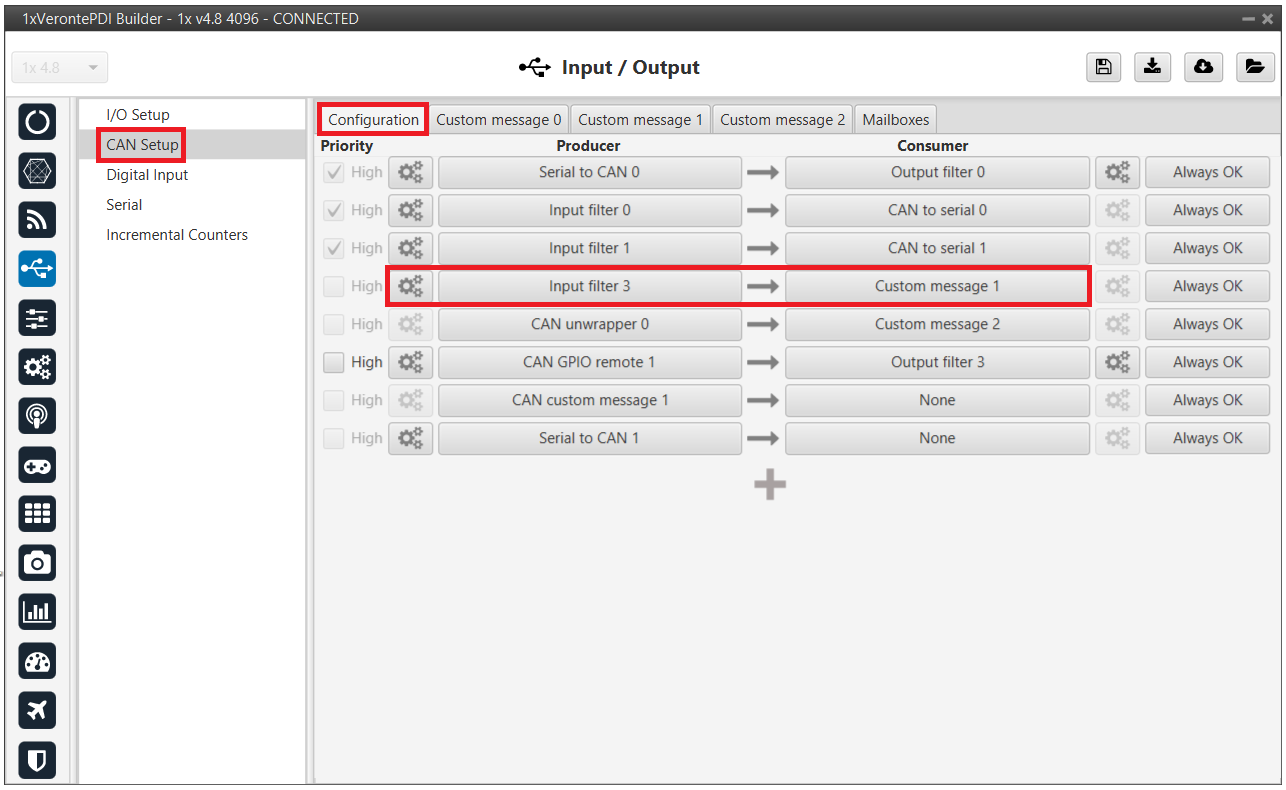
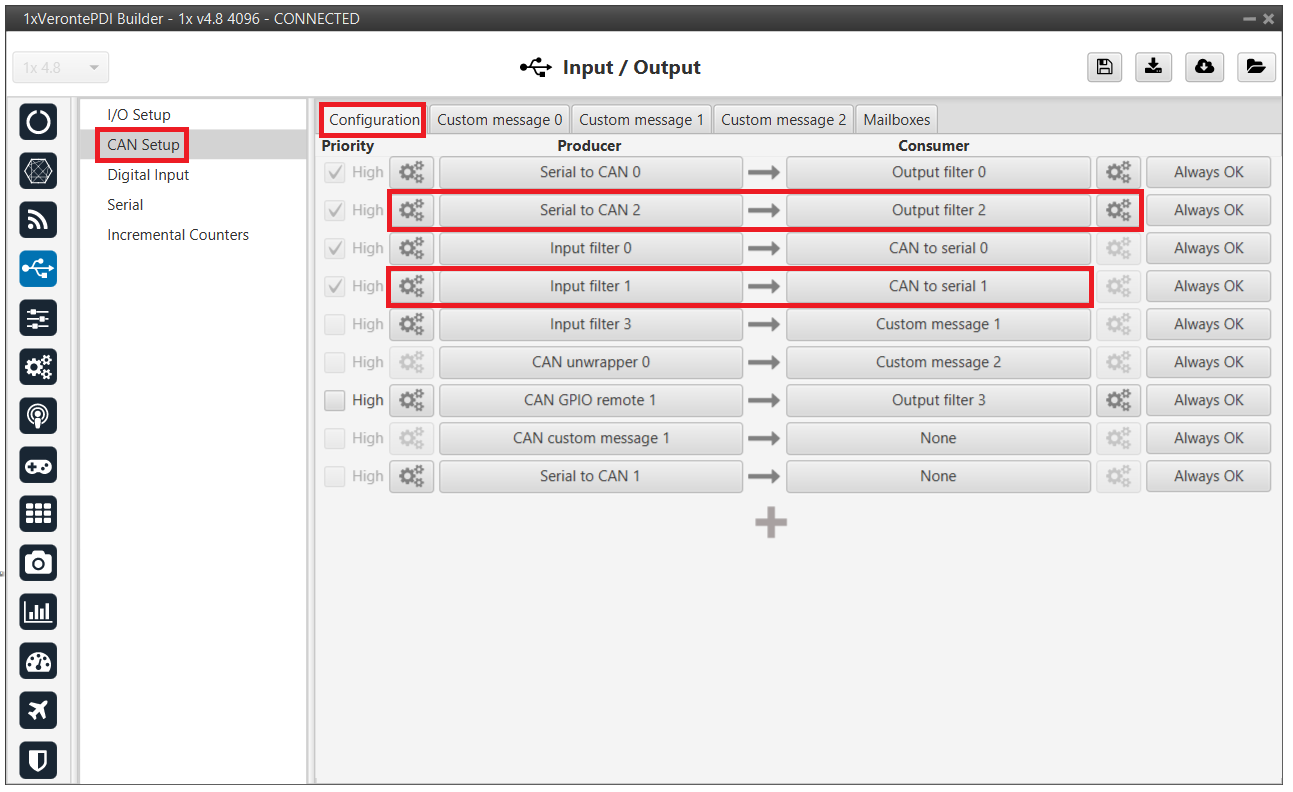
Go to Input/Output menu → CAN I/O panel → Configuration tab.
Connect a CAN Input Filter to a CAN serial wrapper as follows:
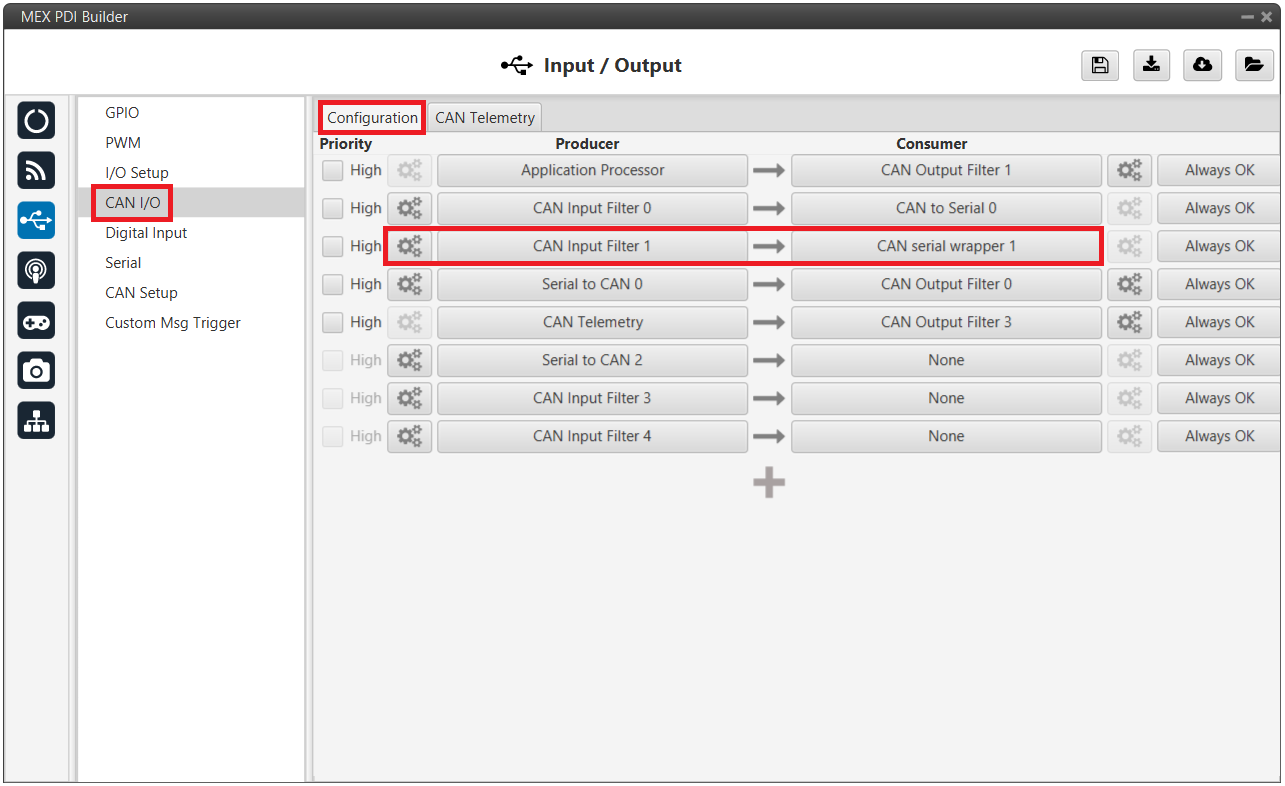
CAN messages reception - CAN I/O configuration -
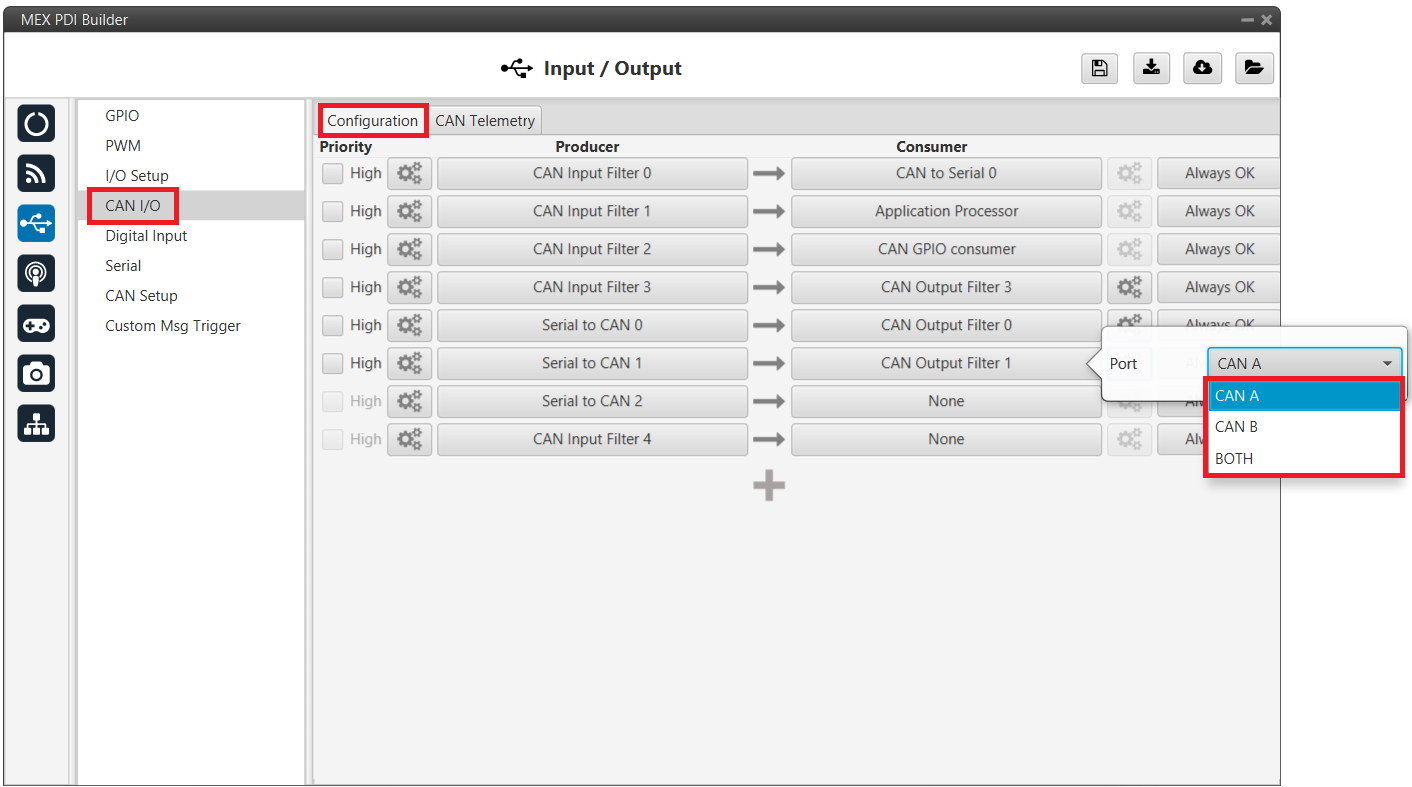
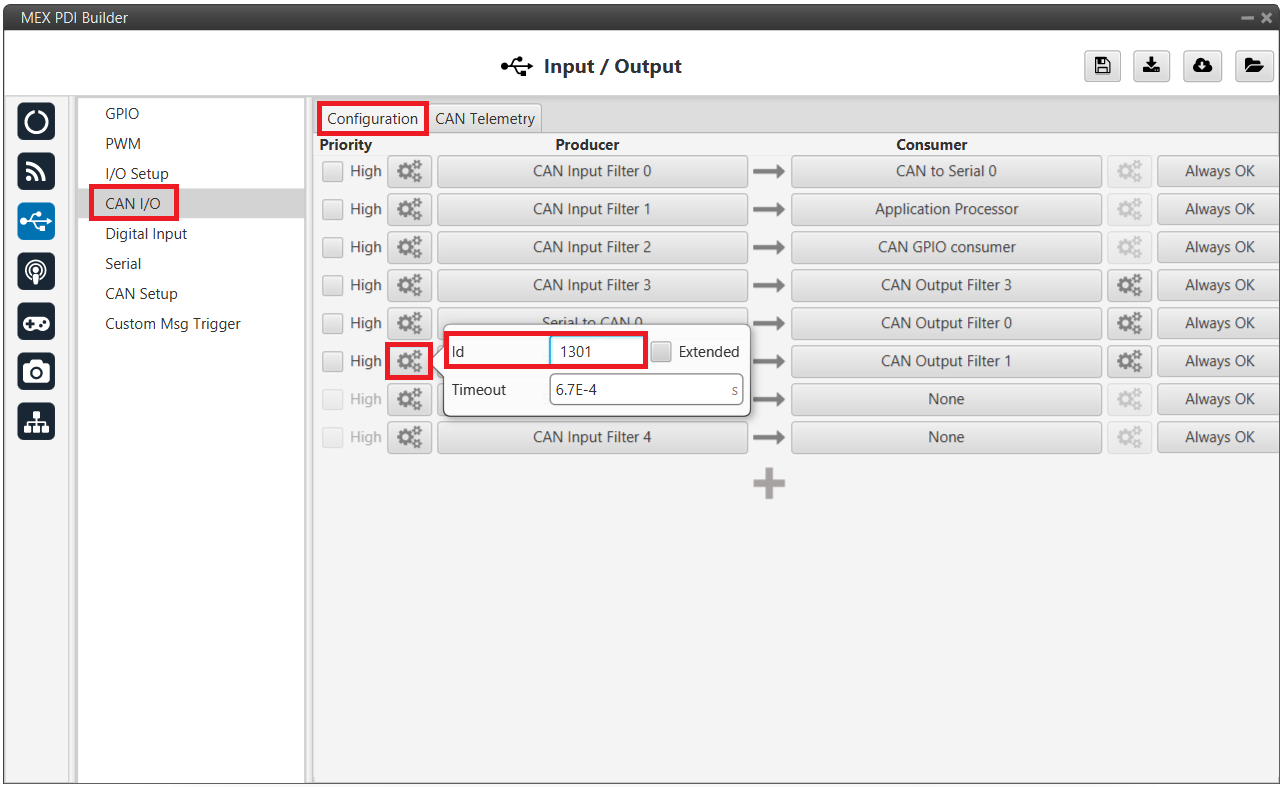
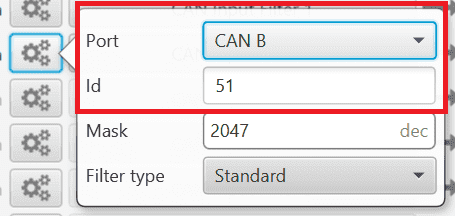
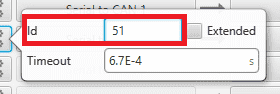
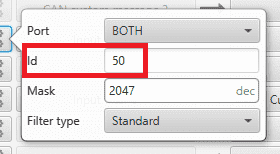
Click on the
 button of the CAN Input Filter and configure the Port and CAN Id, according to the messages to receive.
 -
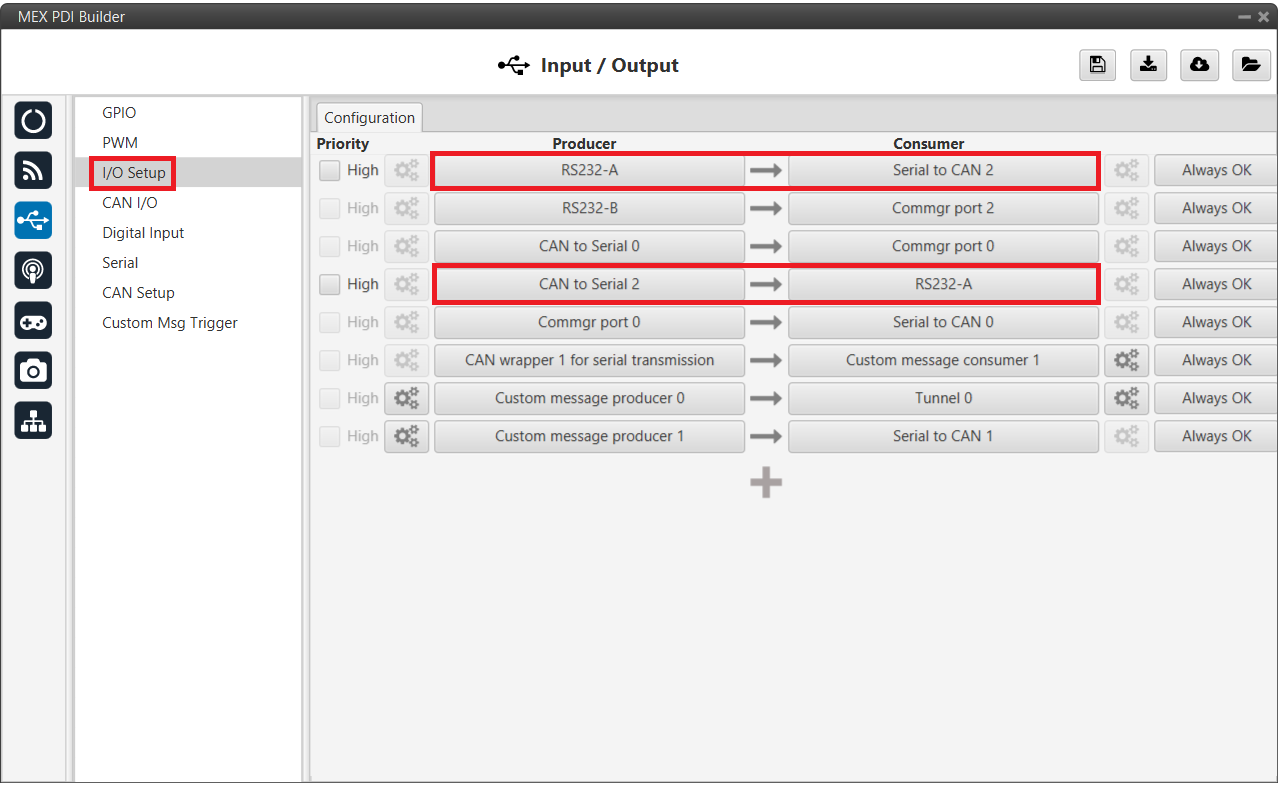
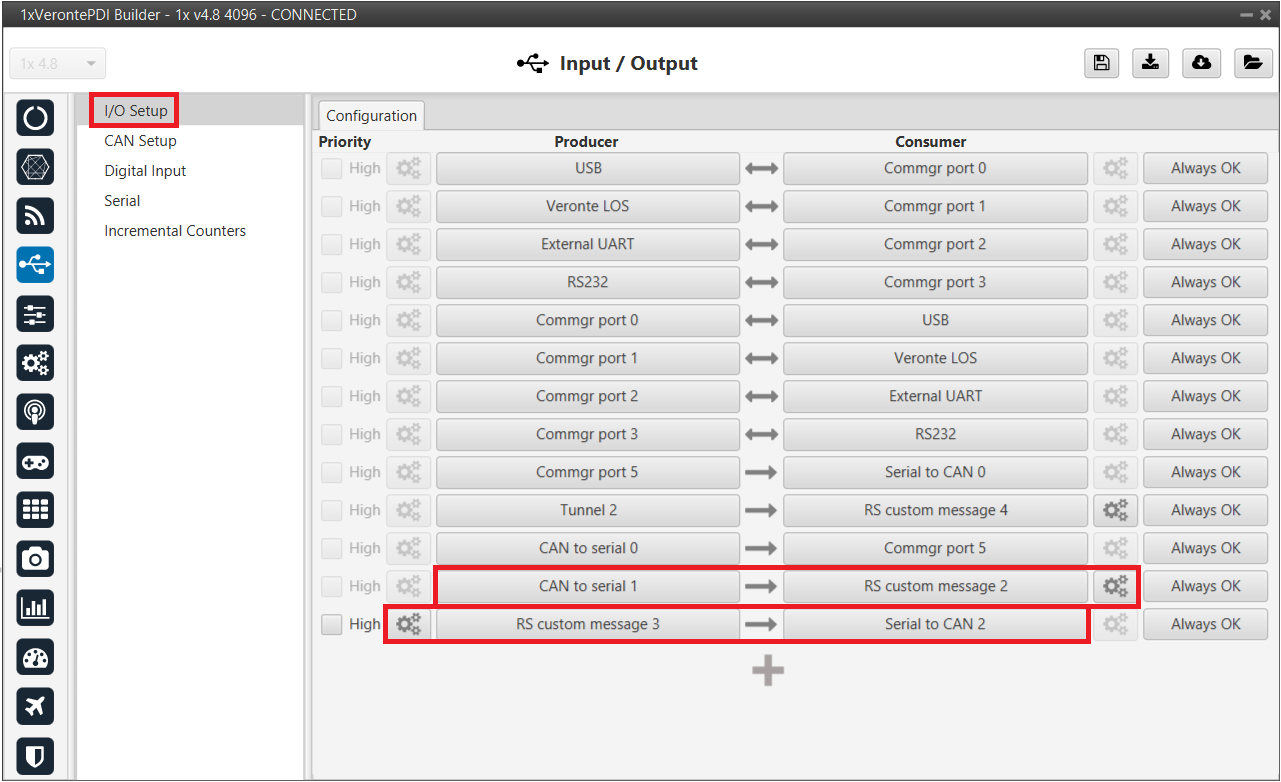
Go to Input/Output menu → I/O Setup panel → Configuration tab.
Connect the corresponding CAN wrapper for serial transmission to a Custom message consumer.
Note
The CAN wrapper for serial transmission index must match the index of the CAN serial wrapper configured in the previous step (in this example, CAN wrapper for serial transmission with index 1 is used).
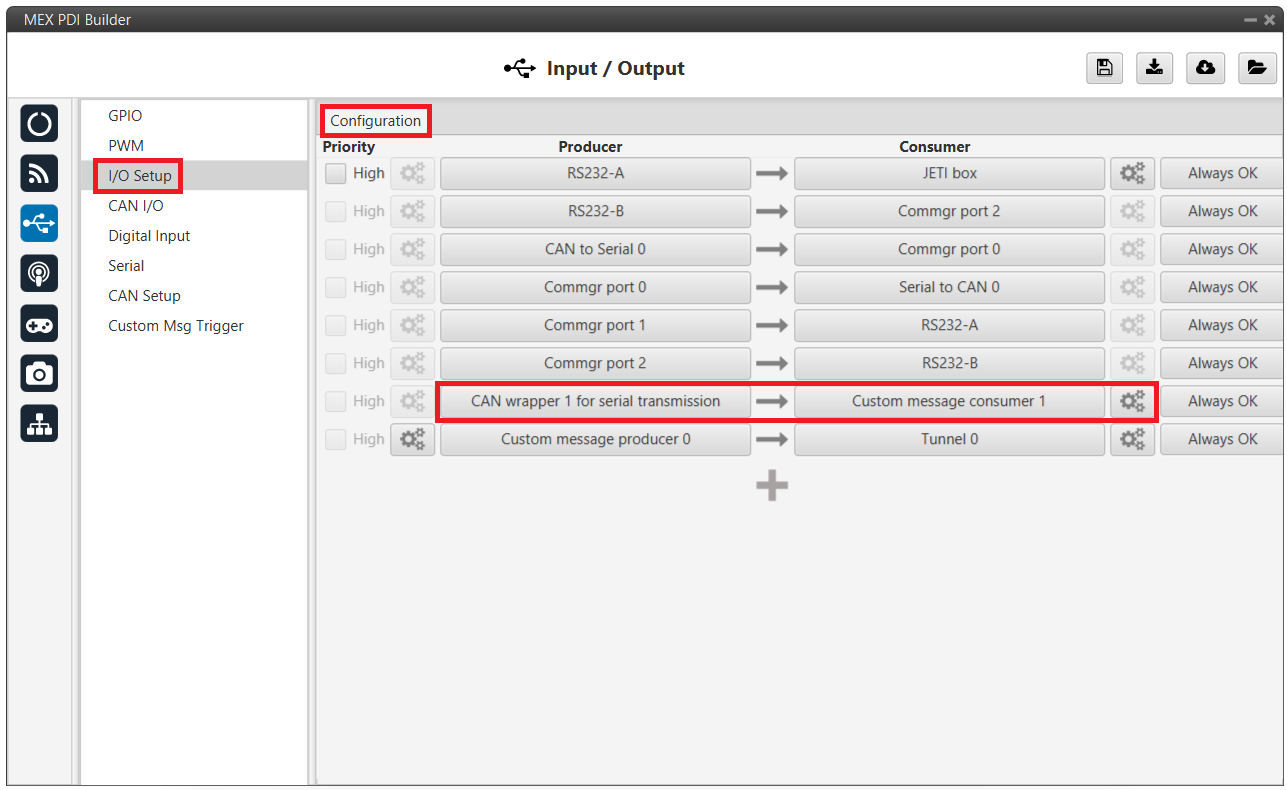
CAN messages reception - I/O Setup configuration -
Click on the
button of the Custom message consumer to access its configuration. To correctly read the CAN message, it must be setup as follows:- Endianness: Little endian
- Matcher:
- Value: 202
- Bits: 8
- Skip 40
- User variables to receive.
- CRC:
- Type: Polynomial
- Endianness: Little endian
- Crc-Preset: crc16veronte
- BackFrom: Number of bytes from which the CRC is computed, in this case, bytes comprehended between the Matcher and this CRC.
- BackTo: 0
- Binary mode
If users wish more detailed information on this configuration, please refer to Custom message types - Input/Output section of the 1x PDI Builder user manual.
The configuration of the Custom message consumer below is an example of the reception of three Real variables.
Note
The CRC BackFrom entry is 17 since there are 5 bytes in the Skip 40 and 12 bytes for the User variables.
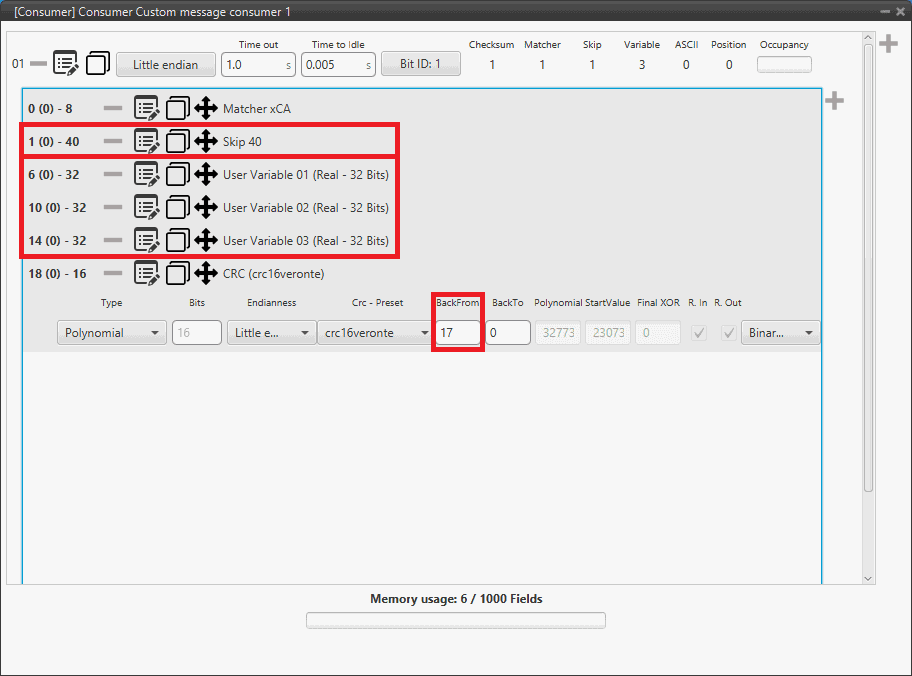
CAN messages reception - Custom message configuration example
CAN Isolator
MEX can operate as a CAN bus isolator, since it manages both CAN buses as desired. The system has a built-in microcontroller; which manages CAN buses in real-time. Both buses are not electrically connected, in consequence, electrical signals that do not follow the CAN protocol will be isolated.
The functionalities of a CAN isolator are the following:
The following diagram summarizes the behavior of MEX as a CAN bus isolator:
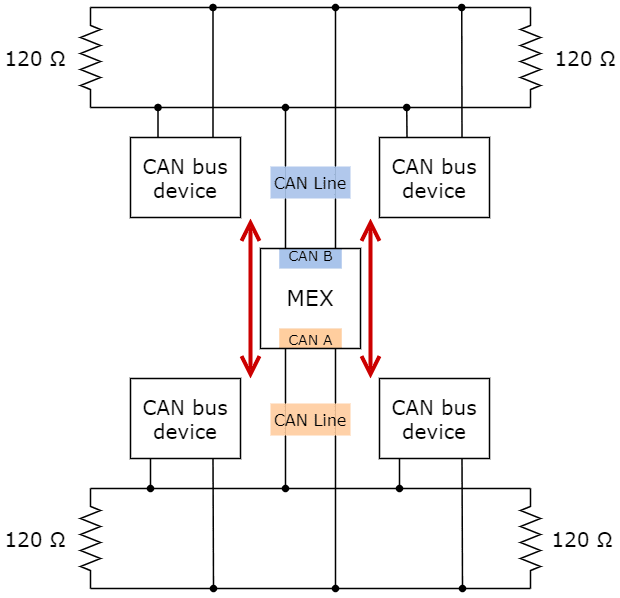
Filtered CAN subnet
With MEX it is possible to isolate CAN nets, by filtering certain messages from one CAN line and only transmitting specific information through MEX to the other one.
In this example, only a certain range of CAN IDs will be allowed to cross from one CAN line to the other using the two CAN ports of MEX. Specifically, information will pass from CAN B of MEX to CAN A of MEX:
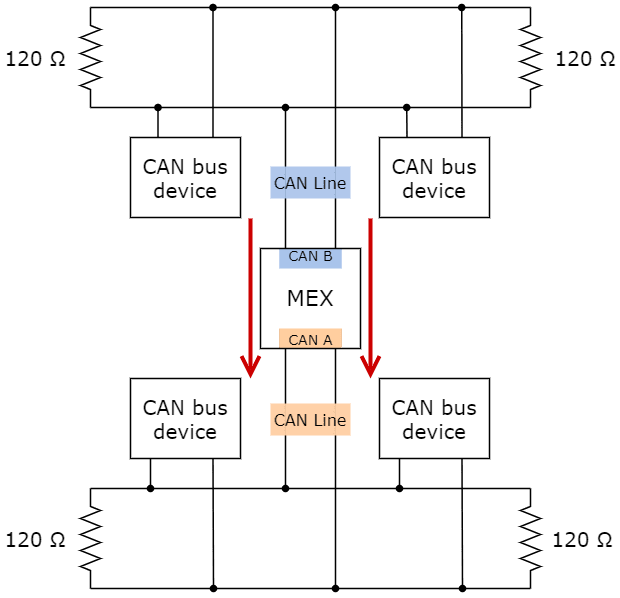
The allowed range will be from 0x550 to 0x55F.
-
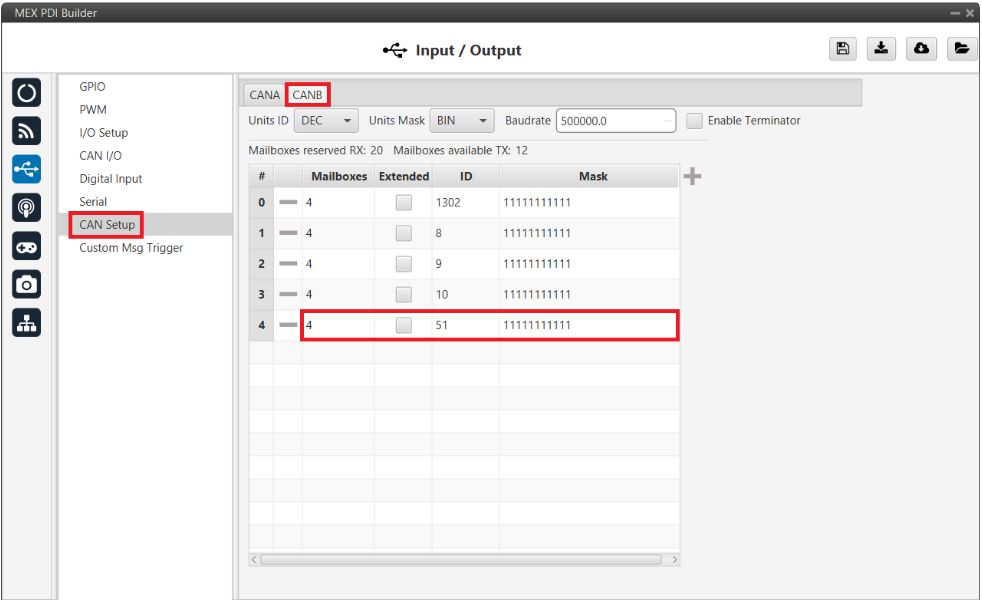
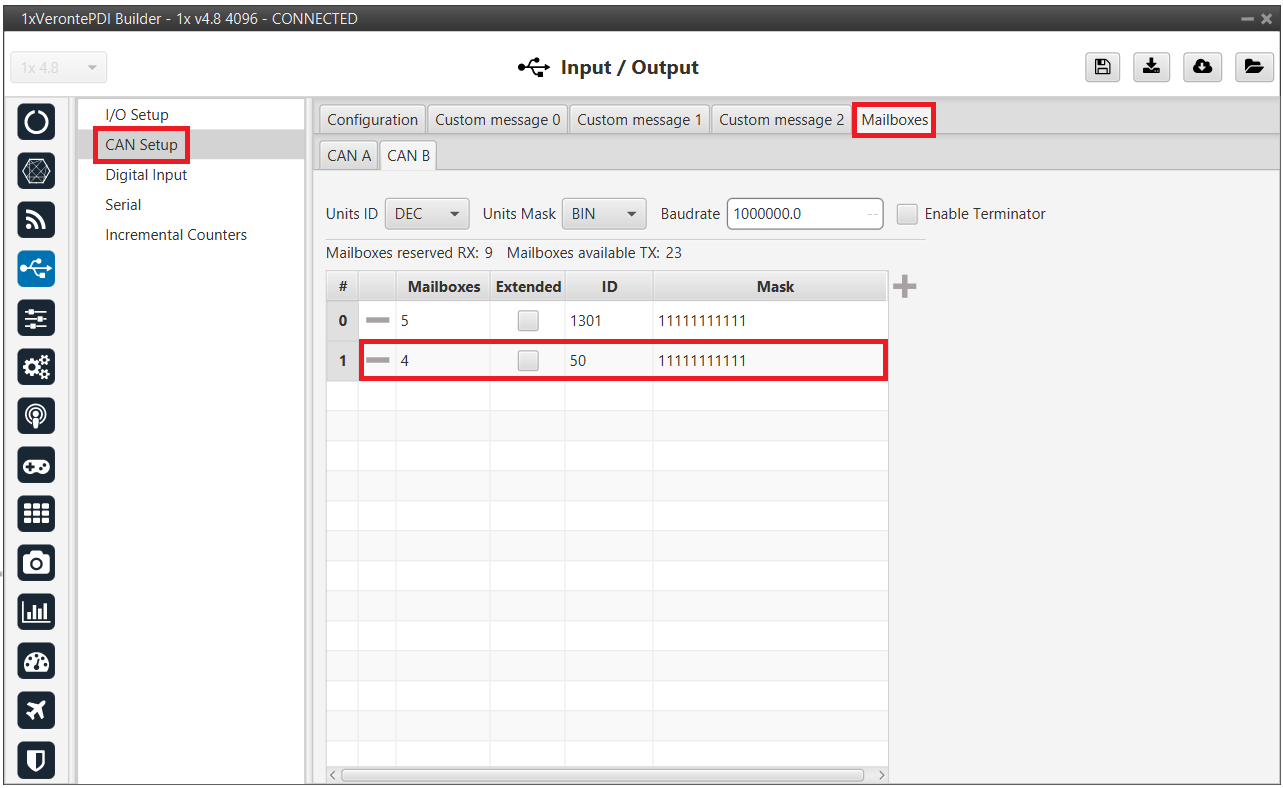
Create a new mailbox entry for CAN B.
To do this, go to Input/Output menu → CAN Setup panel → CAN B tab.
Assign some of the mailboxes to it and set the ID to 0x550. This example uses an ID expressed in hexadecimal notation.
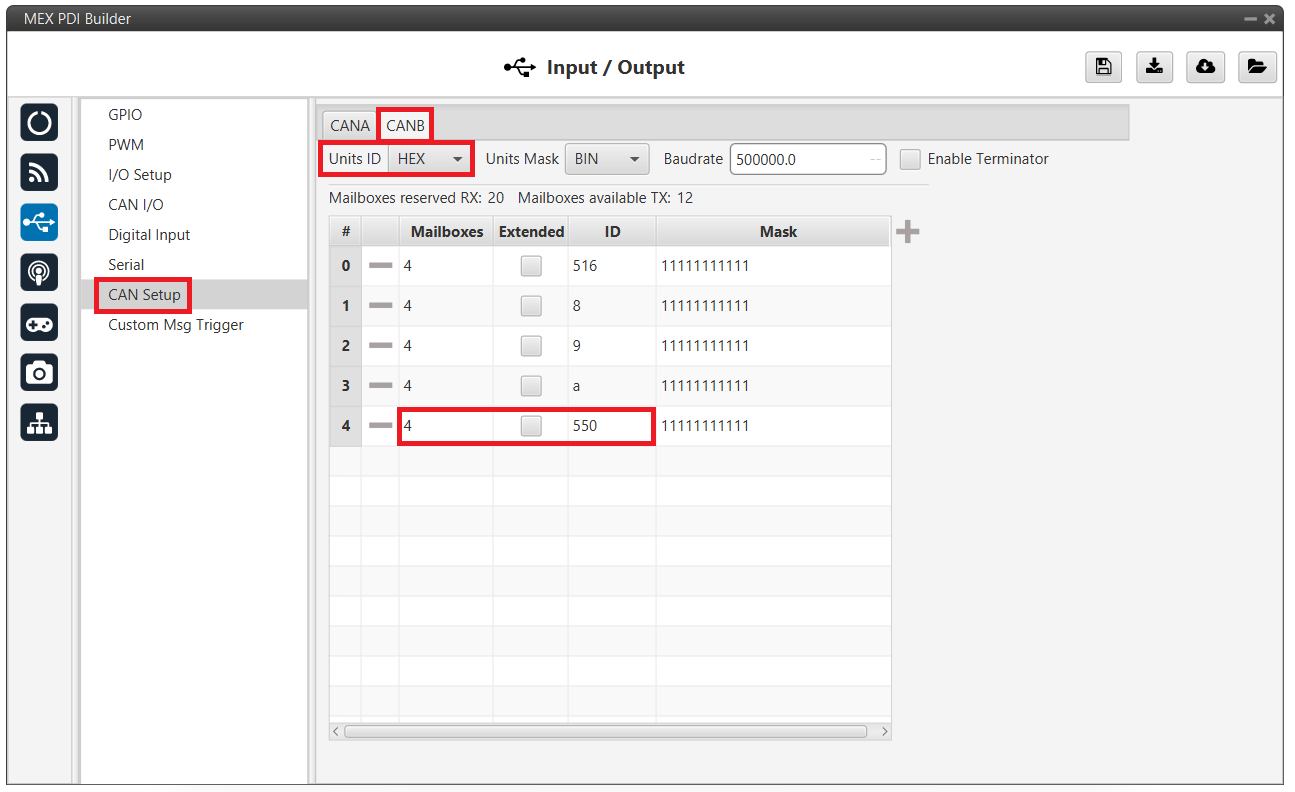
Filtered CAN subnet - CAN Setup configuration -
Set a Mask which will ignore the last 4 bits.
Note
Although the ID has been entered in hexadecimal notation, note that the Mask has been set in binary format.
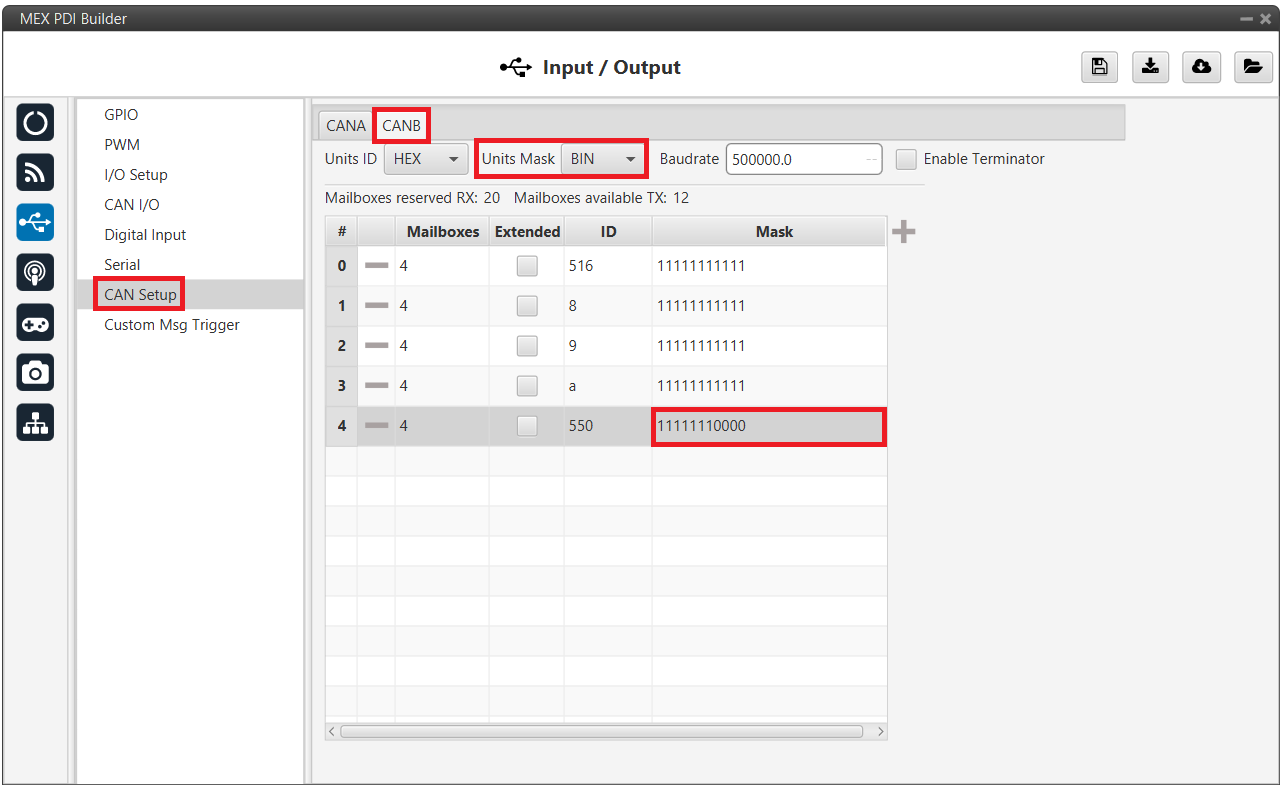
Filtered CAN subnet - CAN Setup mask configuration -
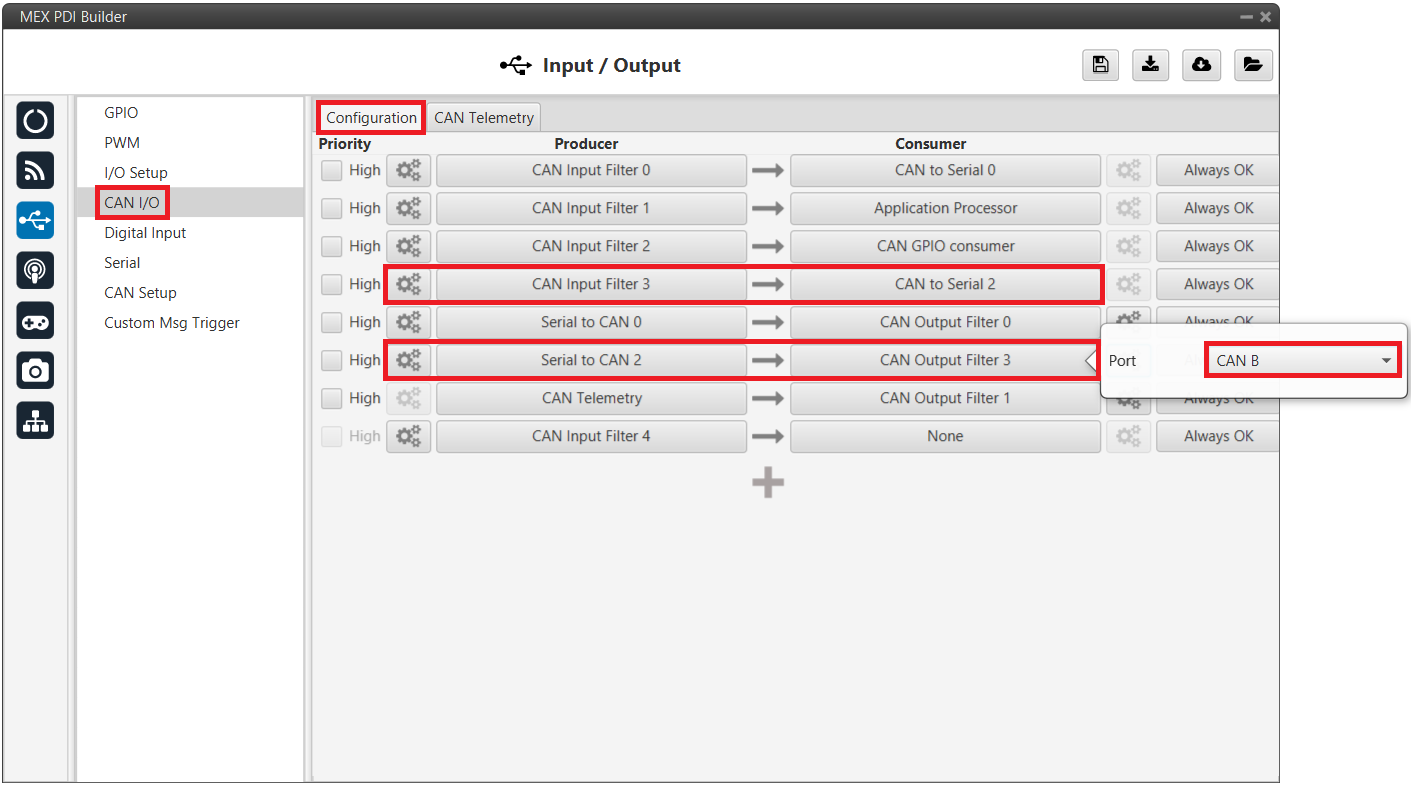
Go to Input/Output menu → CAN I/O panel → Configuration tab.
Configure CAN Input Filter 3 on CAN B, with the same settings as the Mailbox.
Important
This menu only allows setting the Id with decimal numbers. For this example the Id 0x550 is represented as 1360 in decimal format, and the Mask is also represented in decimal format as 2032.
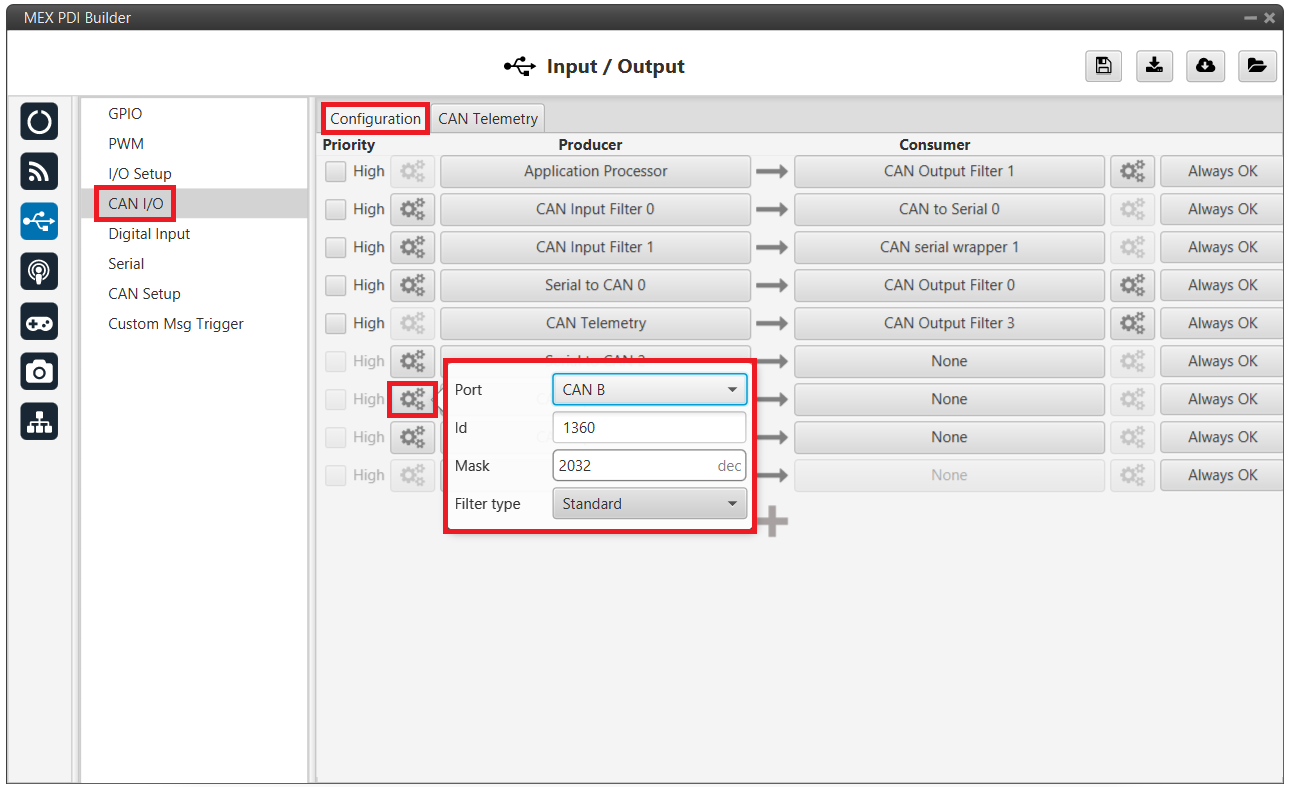
Filtered CAN subnet - CAN Input Filter configuration -
Bind CAN Output Filter 3 to CAN Input Filter 3 and, configure the CAN Output Filter to CAN A.
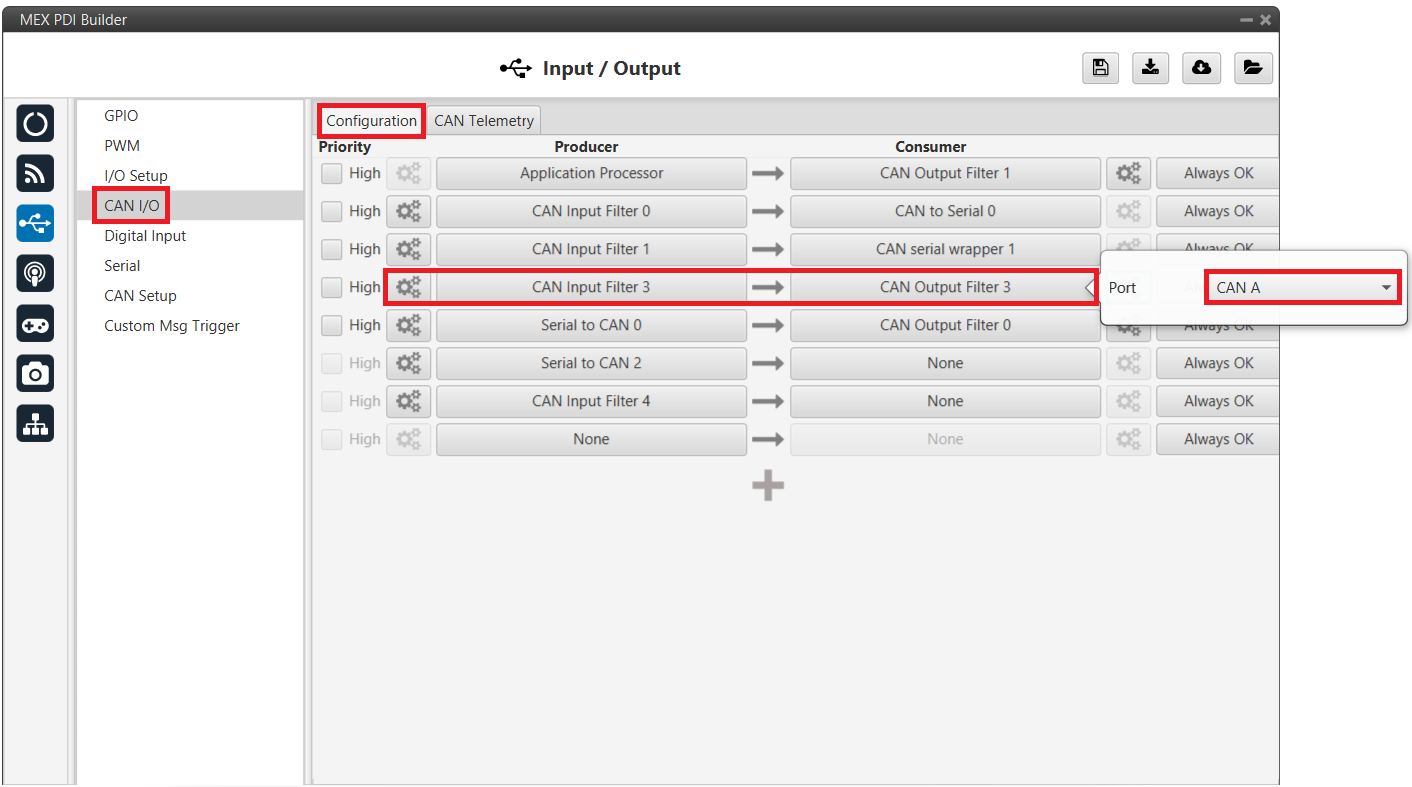
Filtered CAN subnet - CAN Output Filter configuration
CAN tunnel
A CAN tunnel is a specific case of a message tunnel; where messages are tunneled from one CAN port of MEX to the other.
In this example, a transparent tunnel will be created. So, any messages received on Interface A will be sent through Interface B:
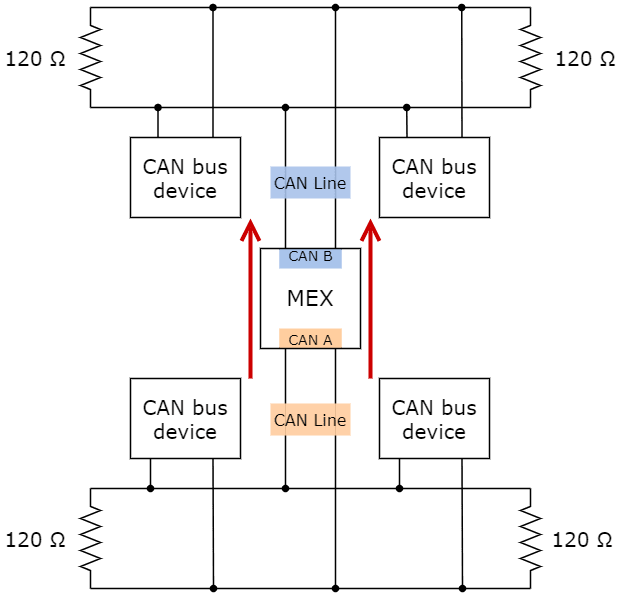
Optionally, the mailboxes can be equally distributed to support both standard and extended CAN IDs.
-
Create a new mailbox entry for Interface A.
To do this, go to Input/Output menu → CAN Setup panel → CAN A tab.
Assign half of the mailboxes to it and set a Mask of 0.
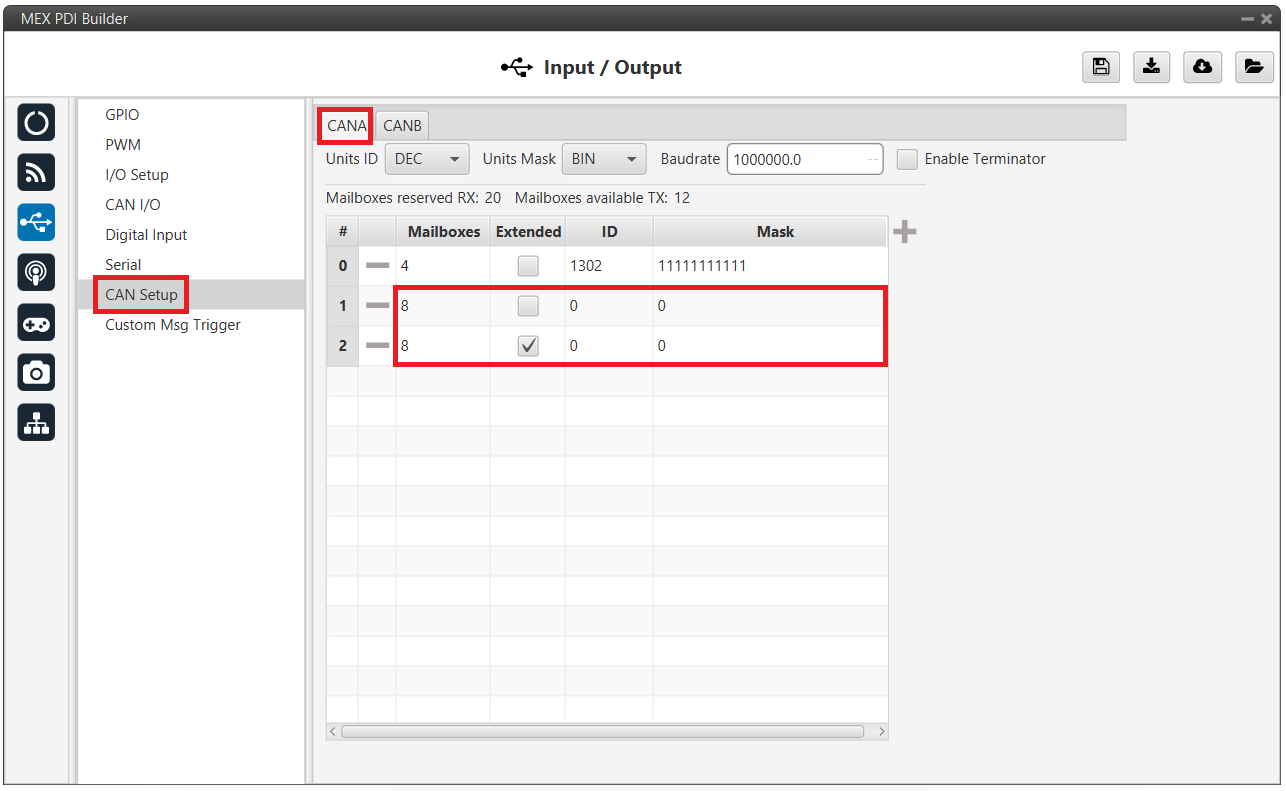
CAN tunnel - CAN Setup configuration -
Go to Input/Output menu → CAN I/O panel → Configuration tab.
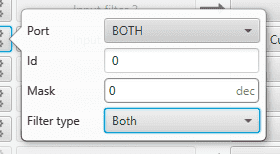
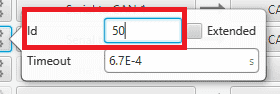
Configure CAN Input Filter 3 on CAN A, with CAN id 0, a Mask of 0 and Both as frame format type.
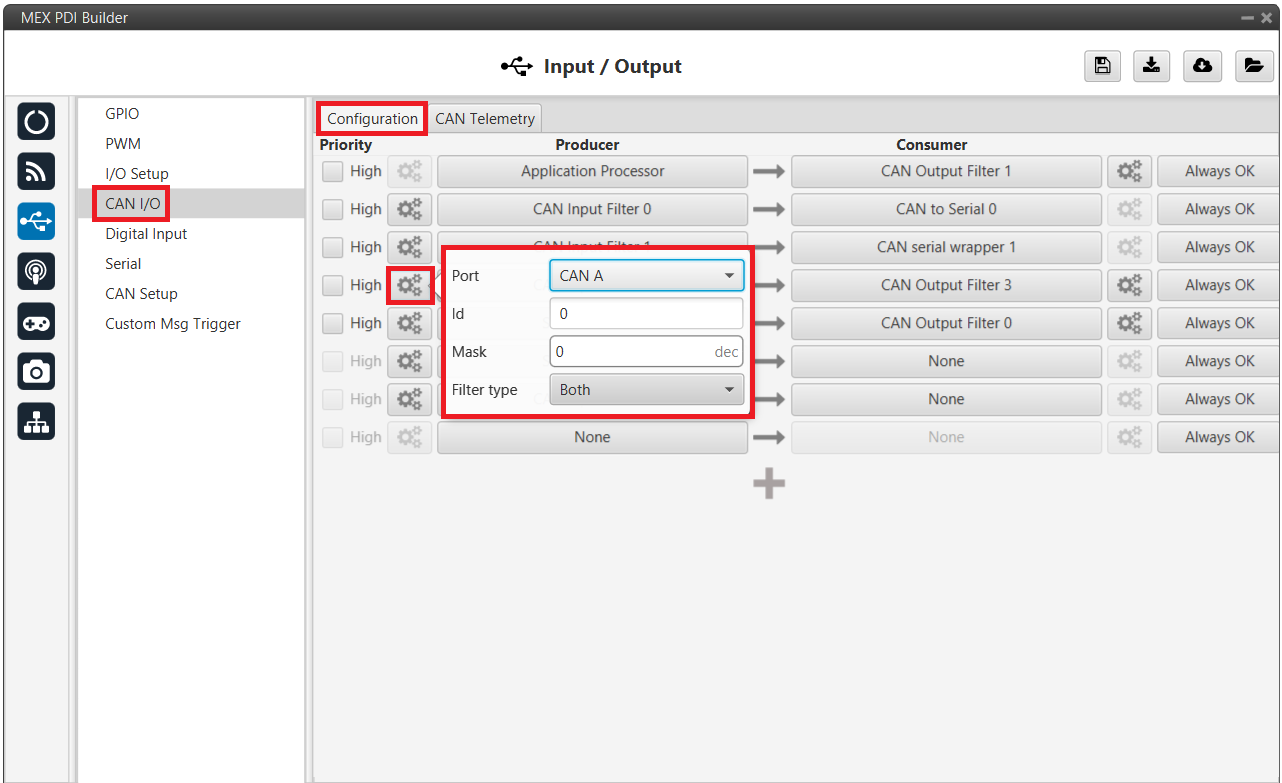
CAN tunnel - CAN Input Filter configuration -
Bind CAN Output Filter 3 to CAN Input Filter 3 and, configure the CAN Output Filter to CAN B.
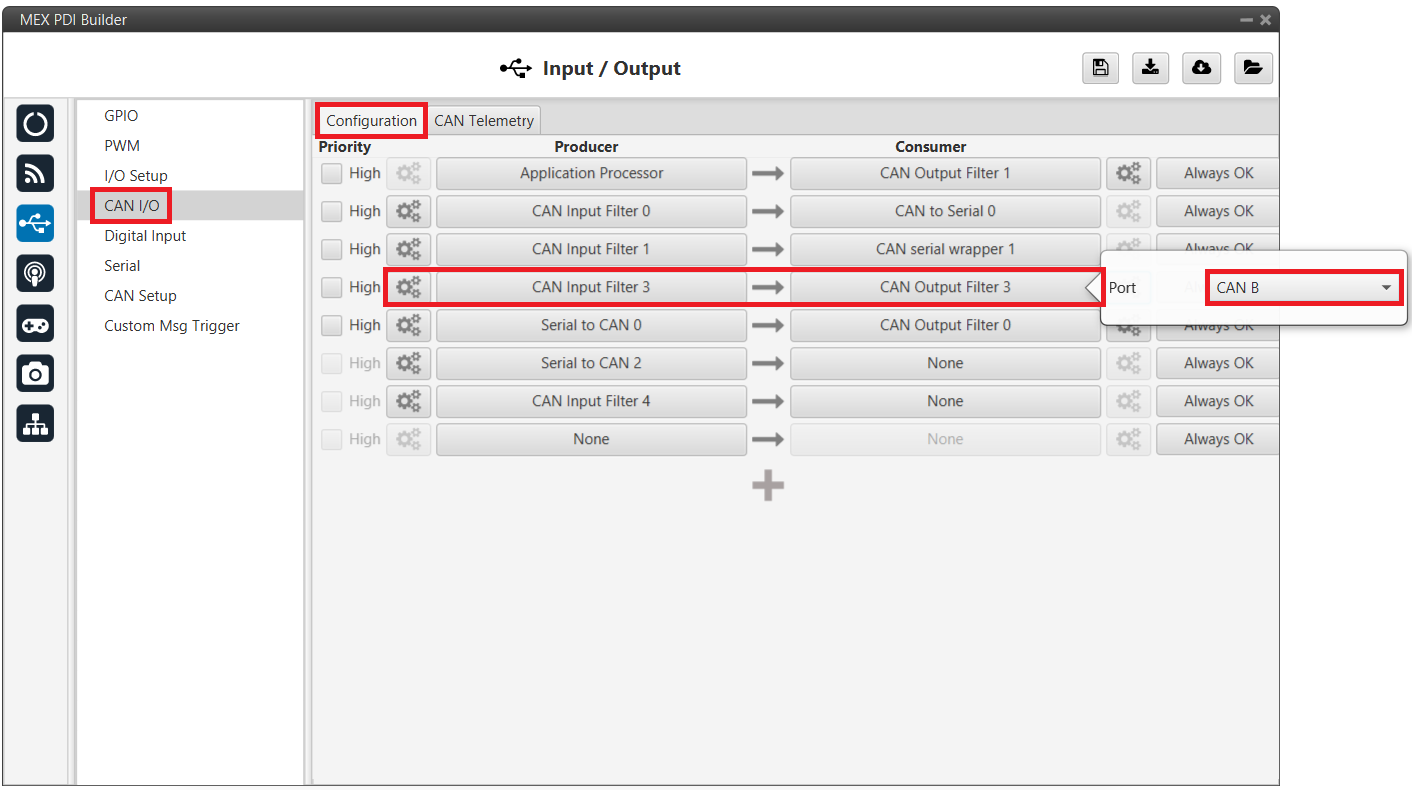
CAN tunnel - CAN Output Filter configuration
Commanding/Reading PWMs
The appropriate PWM message format is described in Command PWMs - CAN Bus protocol section of the MEX Software Manual.

The following steps command PWM from Autopilot 1x to MEX:
1x PDI Builder side
-
Go to Input/Output menu → CAN Setup panel → Configuration tab.
Connect a CAN custom message to an Output filter to send the message:
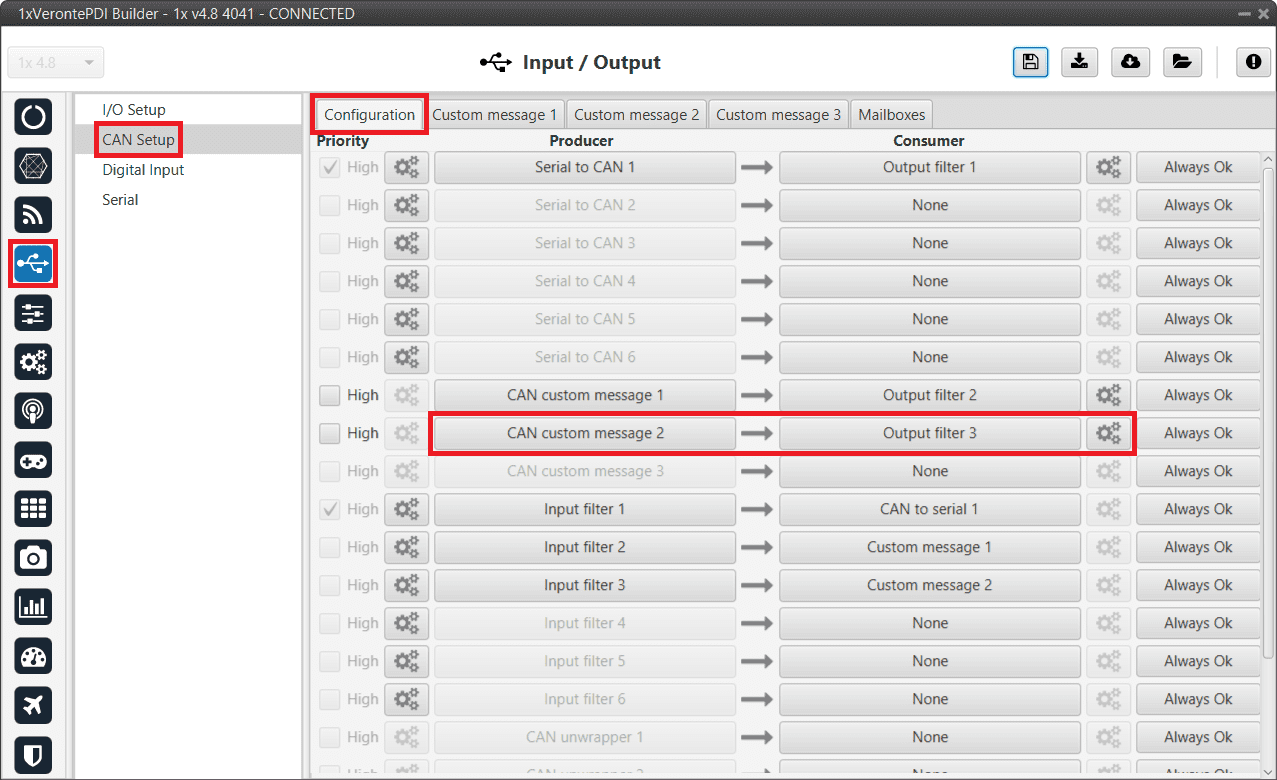
1x PDI Builder - CAN Setup configuration -
Go to Input/Output menu → CAN Setup panel → Custom Message 2 tab (because Custom message 2 has been selected as producer).
Build a CAN Custom message using the PWM variable and the appropriate message format. Select the fields to send in the TX as it is a Producer. CAN ID is arbitrary, for this example ID 100 will be used:
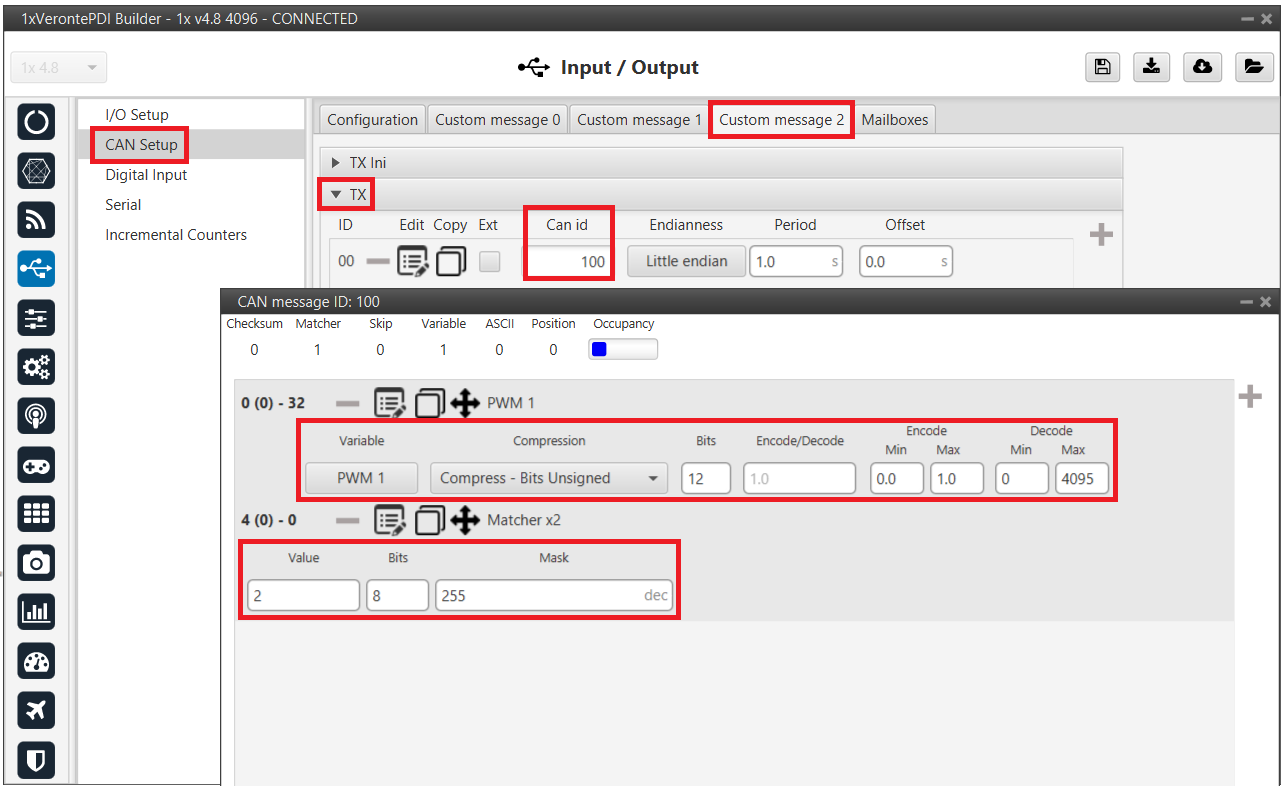
1x PDI Builder - CAN Custom message configuration Message format:
- Matcher (2) [8 bits]
- PWM 0 [12 bits]
- PWM 1 [12 bits]
- PWM 2 [12 bits]
- PWM 3 [12 bits]
- Matcher (3) [8 bits]
- PWM 4 [12 bits]
- PWM 5 [12 bits]
- PWM 6 [12 bits]
- PWM 7 [12 bits]
- Each PWM variable has to be set using the following format:
- Variable: PWM X
- Compression: Compress - Bits Unsigned
- Bits: 12
- Encode: Min=0.0 / Max=1.0
- Decode: Min=0 / Max=4095
- Matcher (2) [8 bits]
MEX PDI Builder side
-
Go to Input/Output menu → CAN Setup panel.
Create the mailbox to receive the new message (ID 100):
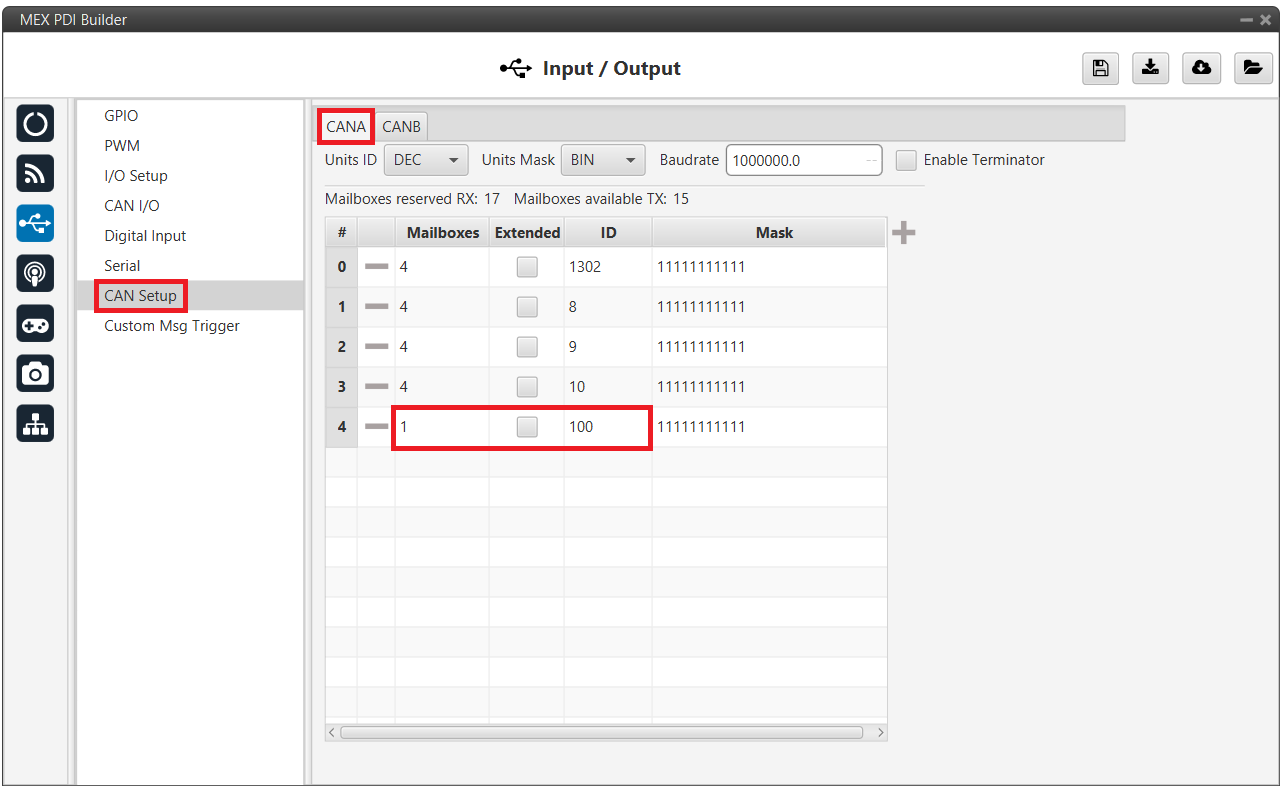
MEX PDI Builder - CAN Setup configuration -
Go to Input/Output menu → CAN I/O panel → Configuration tab.
Connect a CAN Input Filter with the right CAN ID to the Application Processor consumer:
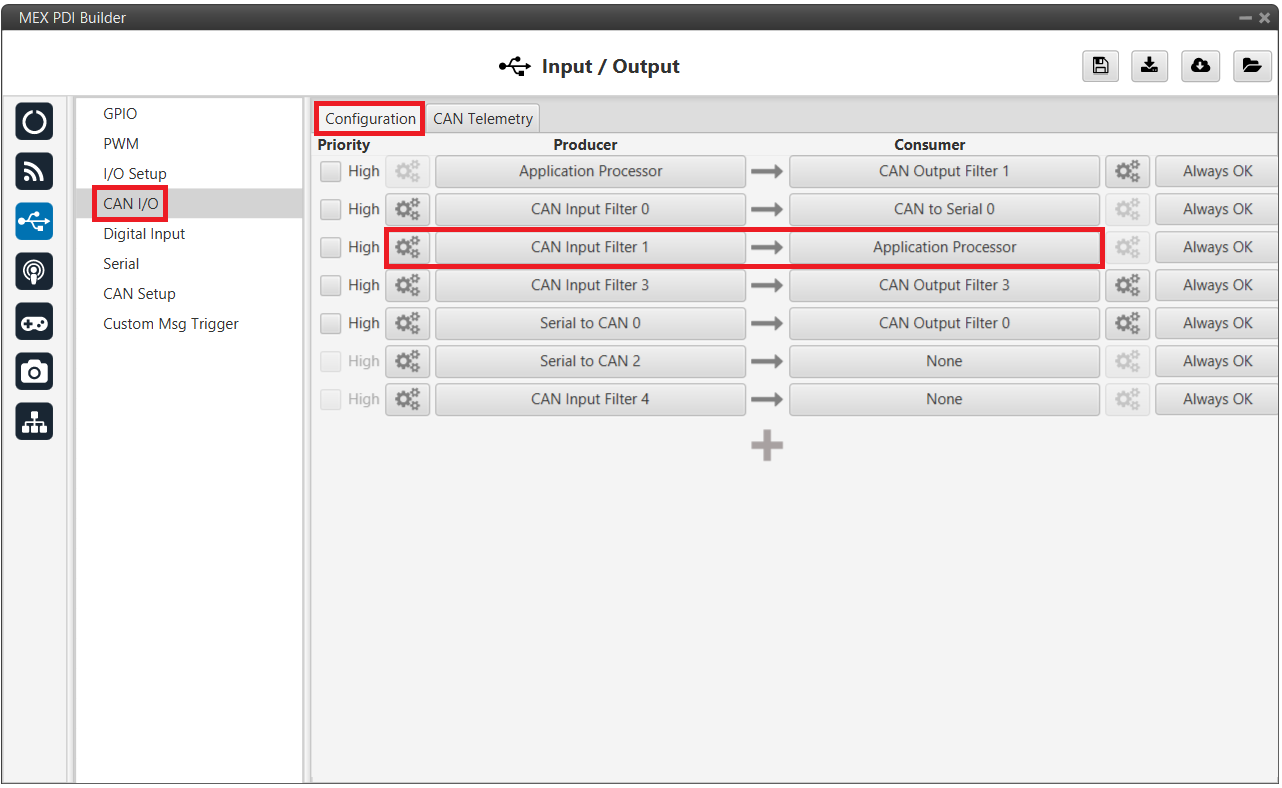
MEX PDI Builder - CAN I/O configuration 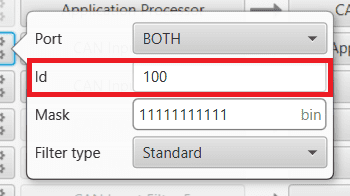
MEX PDI Builder - CAN Input Filter configuration -
Go to Input/Output menu → PWM panel → PWM 2 tab (as PWM 1 has been selected in 1x PDI Builder).
Note
Check the order of the PWM signal, the first PWM signal of Veronte Autopilot 1x must match the first PWM signal of MEX. Numeration may differ between Veronte applications depending on the used version.
Configure parameters for PWM 2:
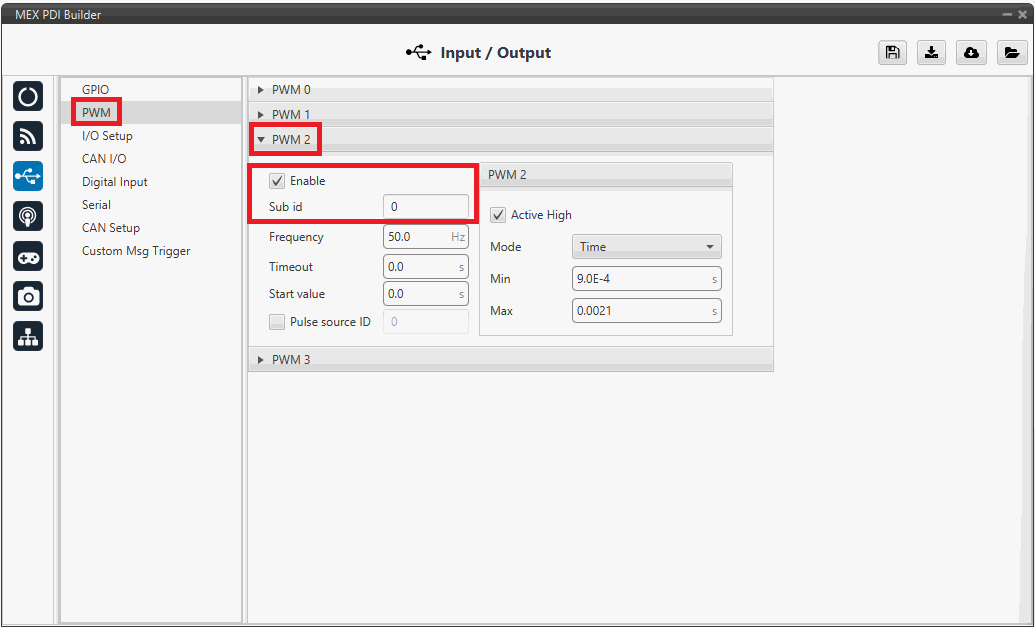
MEX PDI Builder - PWM configuration -
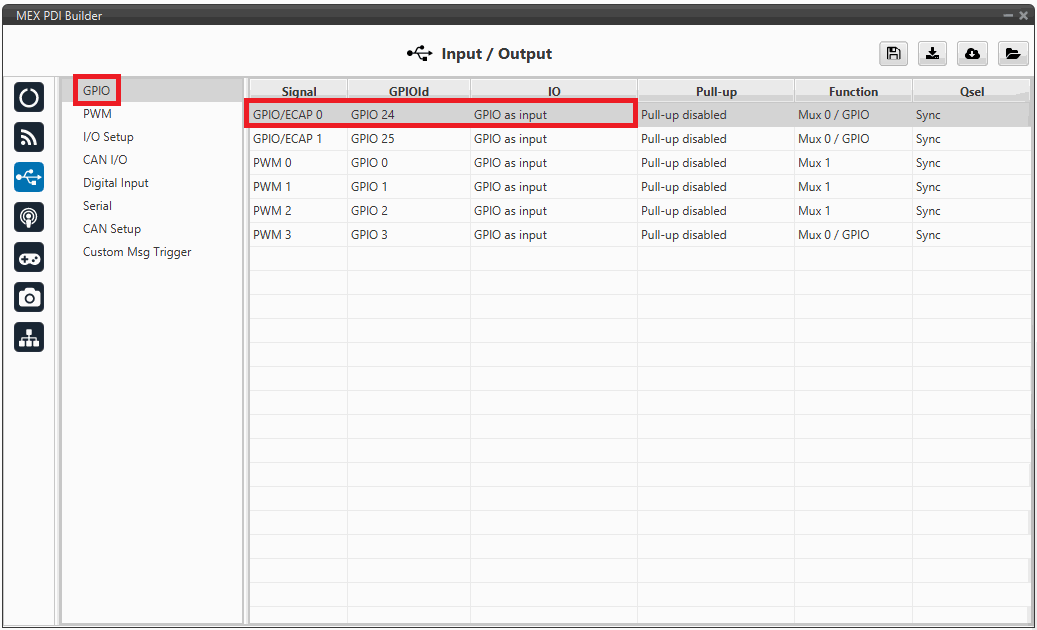
Go to Input/Output menu → GPIO panel.
Check that this PWM pin (PWM 2 in this case) has correctly switched from GPIO to PWM.
It should look like this:
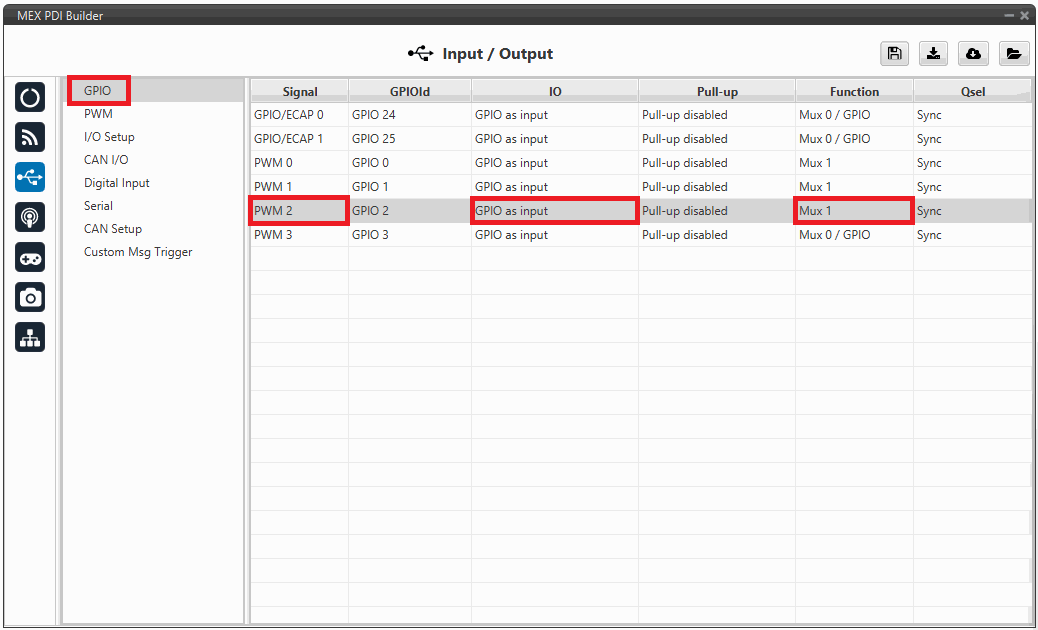
MEX PDI Builder - GPIO configuration - IO: GPIO as output.
- Function: Mux 1.
-
Finally, save changes.
GPIO Command
The following are the steps to send a GPIO command from the Veronte Autopilot 1x, receive it at MEX and process it, so that MEX carries out the command.
GPIO Command is very similar to PWM command with a few differences.
1x PDI Builder side
-
Go to Input/Output menu → CAN Setup panel → Configuration tab.
Connect, as Producer, a 'CAN GPIO remote' to an Output filter:
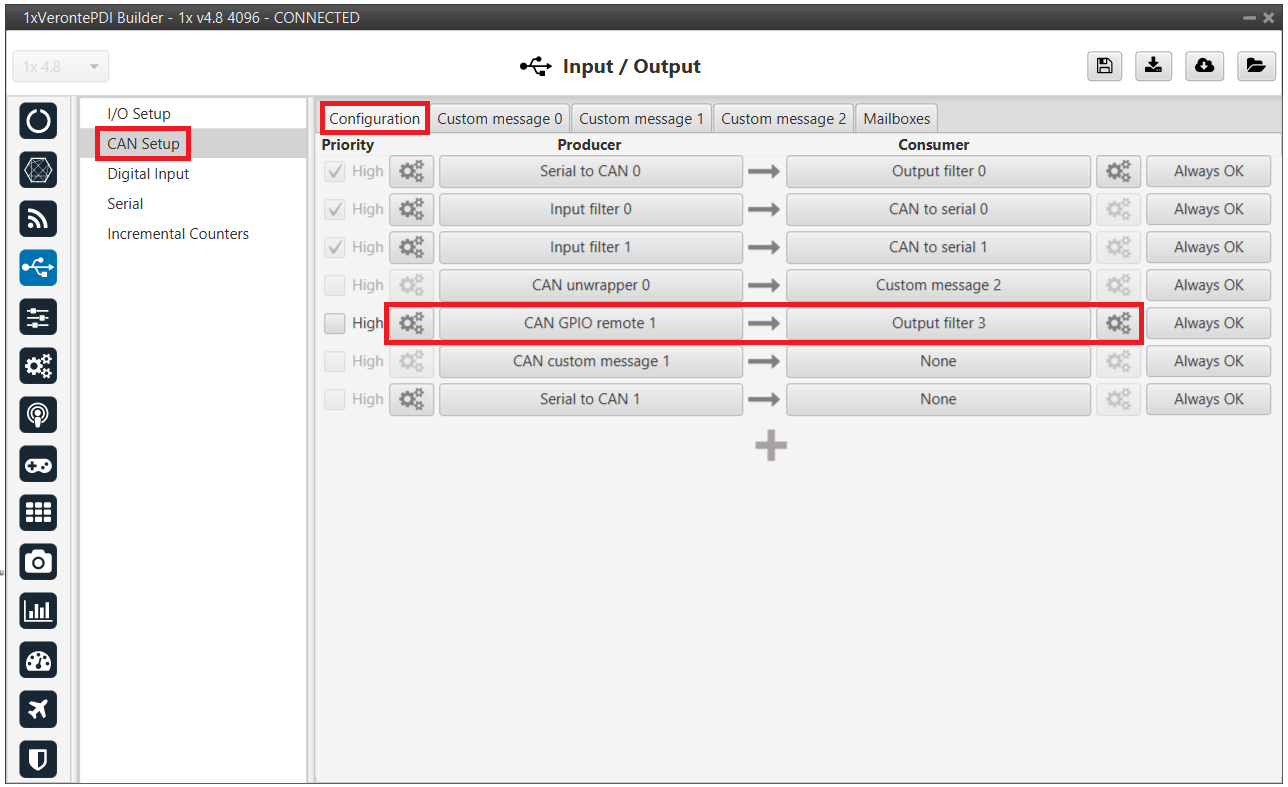
1x PDI Builder - CAN Setup configuration CAN GPIO remote must be configured. For more information about its configuration, read CAN Setup - Input/Output section of 1x PDI Builder user manual.
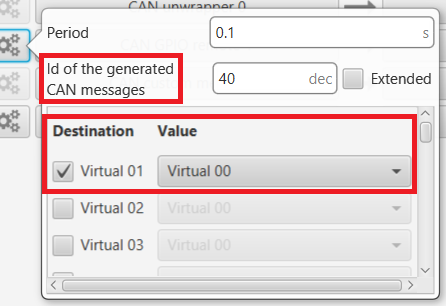
1x PDI Builder - CAN GPIO remote configuration -
Go to Automations menu.
GPIO must be activated using an 'Output' action:
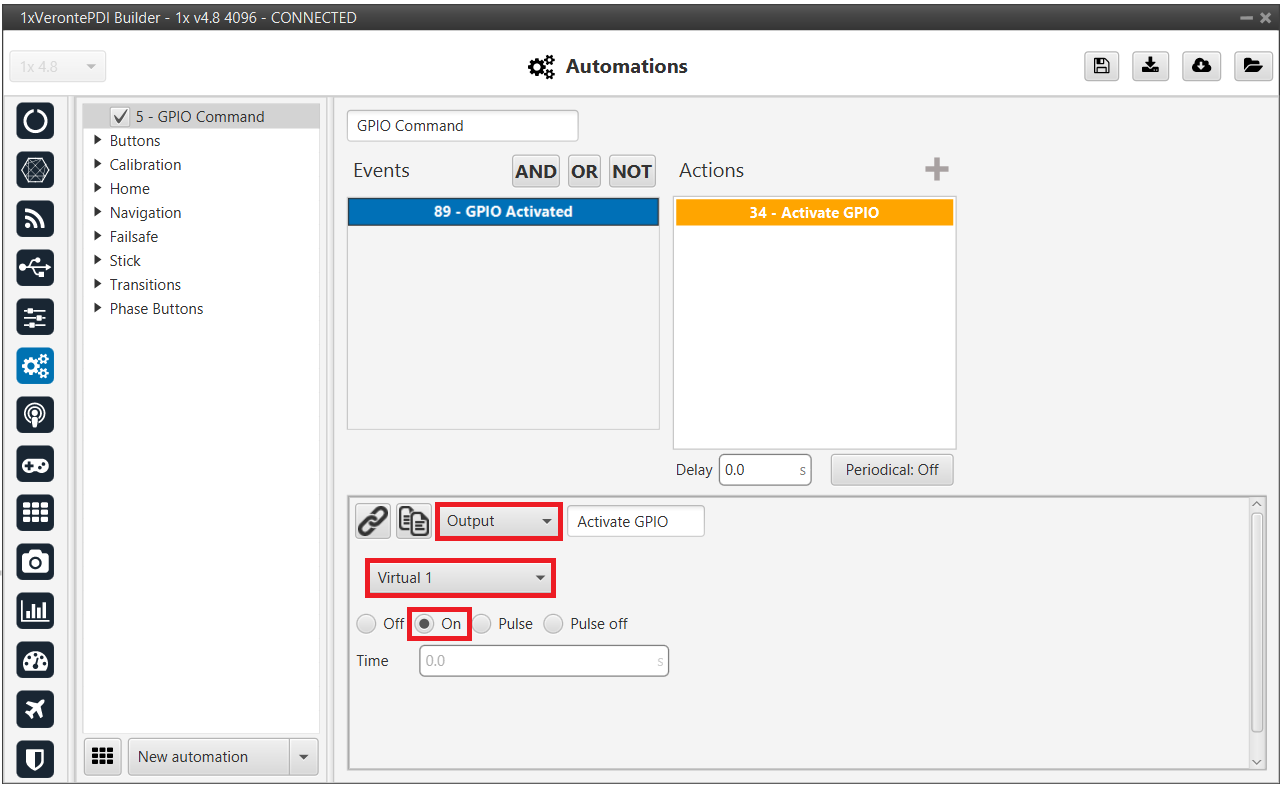
1x PDI Builder - Automation configuration
MEX PDI Builder side
-
Go to Input/Output menu → CAN I/O panel → Configuration tab.
Finally, connect a CAN Input Filter to the CAN GPIO consumer:
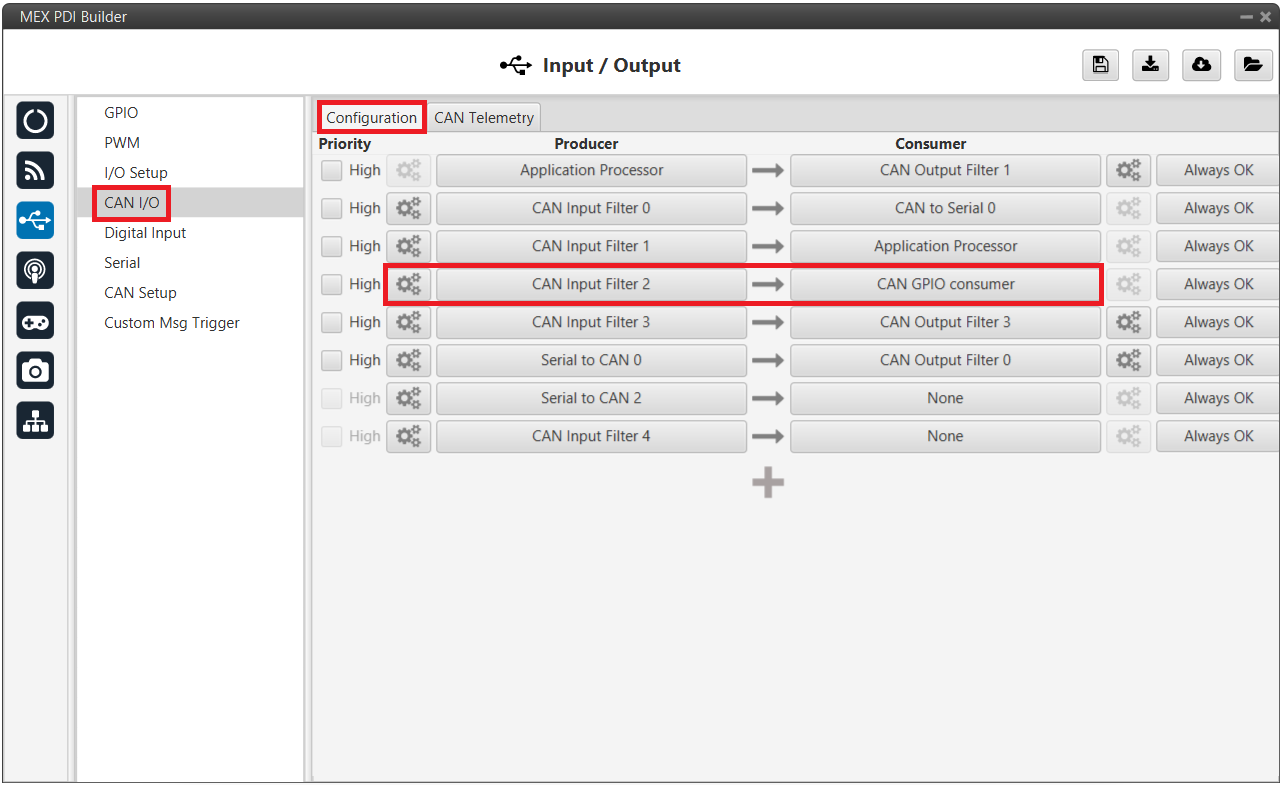
MEX PDI Builder - CAN I/O configuration The Id must match the one configured in 1x PDI Builder as Output filter:
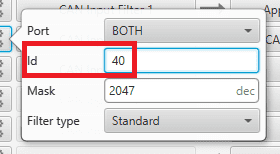
MEX PDI Builder - CAN Input Filter configuration
MEX as external magnetometer for Autopilot 1x
MEX has to be configured with MEX PDI Builder to send the magnetometer measurements by messages, in the same way as external magnetometer does. Autopilot 1x also requires a configuration, which is made with 1x PDI Builder.
This configuration can be done both via Serial or CAN interfaces.
Serial
MEX PDI Builder side
-
Go to Input/Output menu → I/O Setup panel.
Connect the Custom message producer 1 or 2 to the RS232-A, RS232-B or RS485-C port.
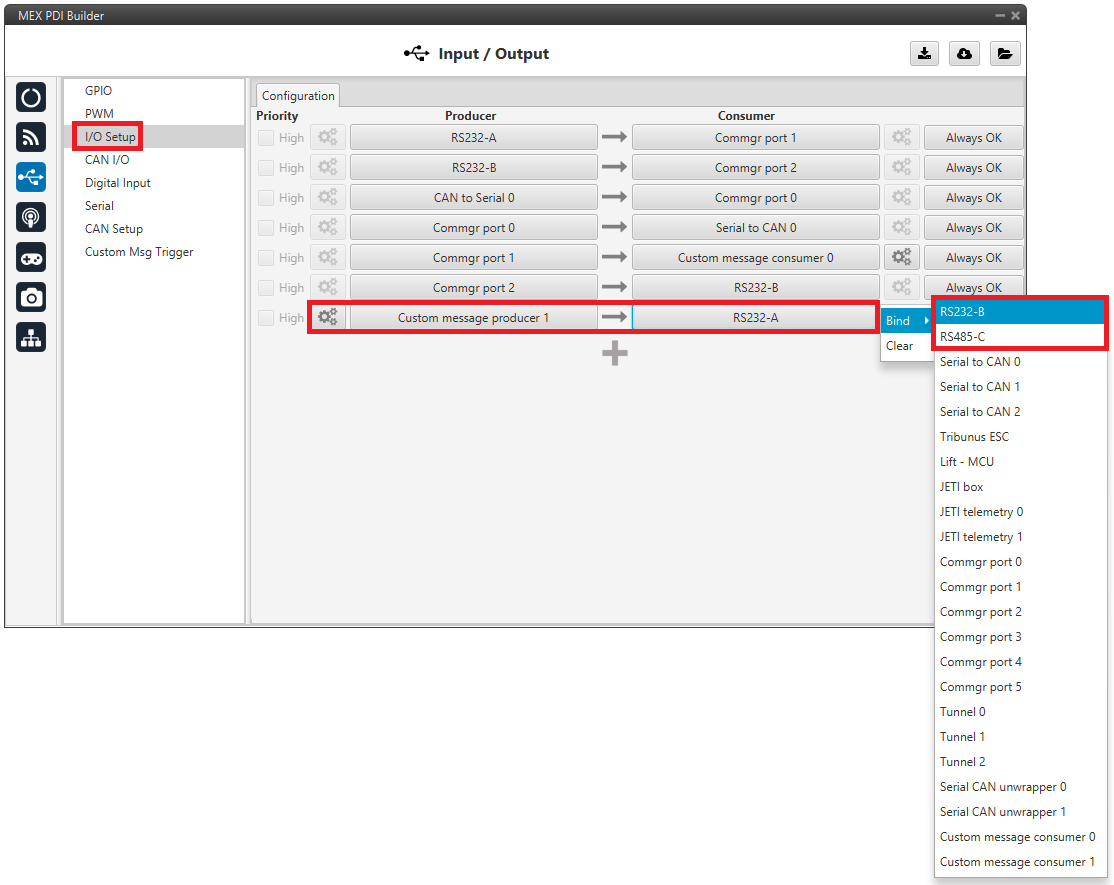
MEX PDI Builder - I/O Setup configuration -
Click on the
button of the chosen Custom message producer and add a new message (clicking on  ), then configure it as Big endian and set a Period of 0.02 s.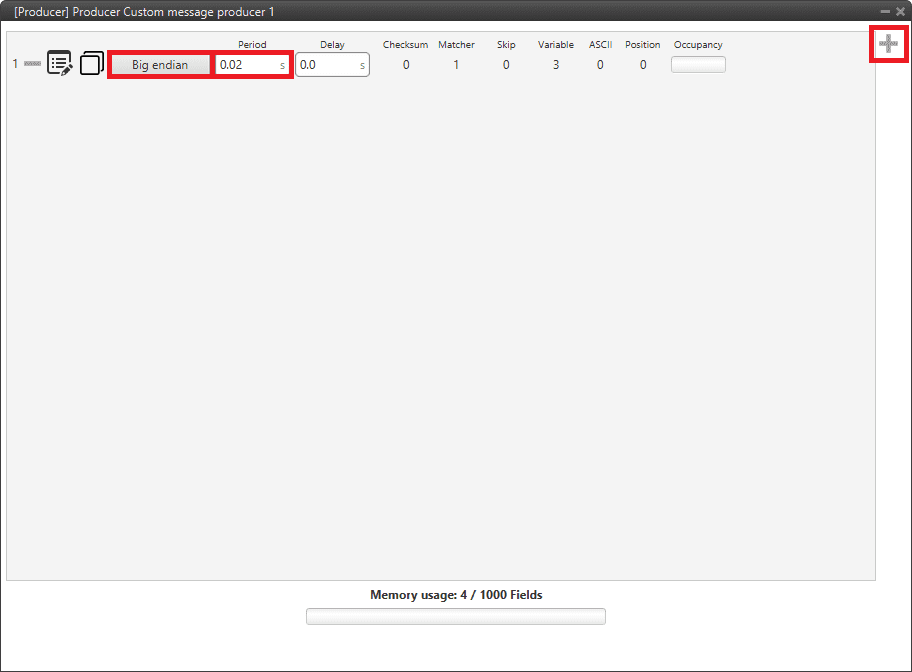
MEX PDI Builder - Custom message configuration -
Click on
to add the 3 following Real variables: 313, 314 and 315. Then configure them according to the following table:Parameter Configuration Compression Compress - Bits Signed Bits 16 Encode Min: -2.1845334E-4 / Max: 2.1844667E-4 Decode Min: -32768 / Max: 32767 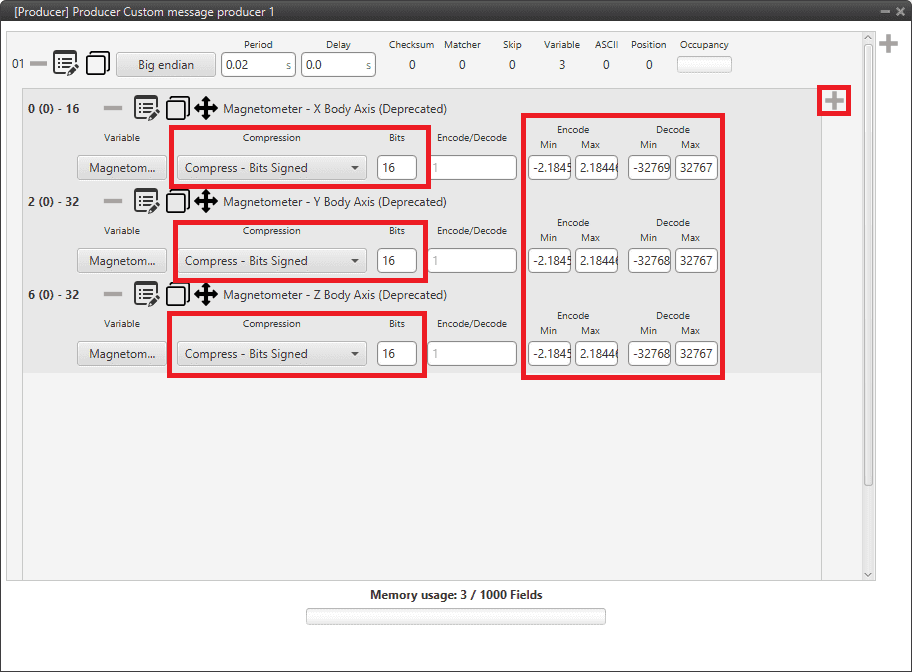
MEX PDI Builder - Custom message Variables configuration -
Click on
→ Matcher, to add a matcher to the message and configure it as follows:Parameter Configuration Value 13 Bits 8 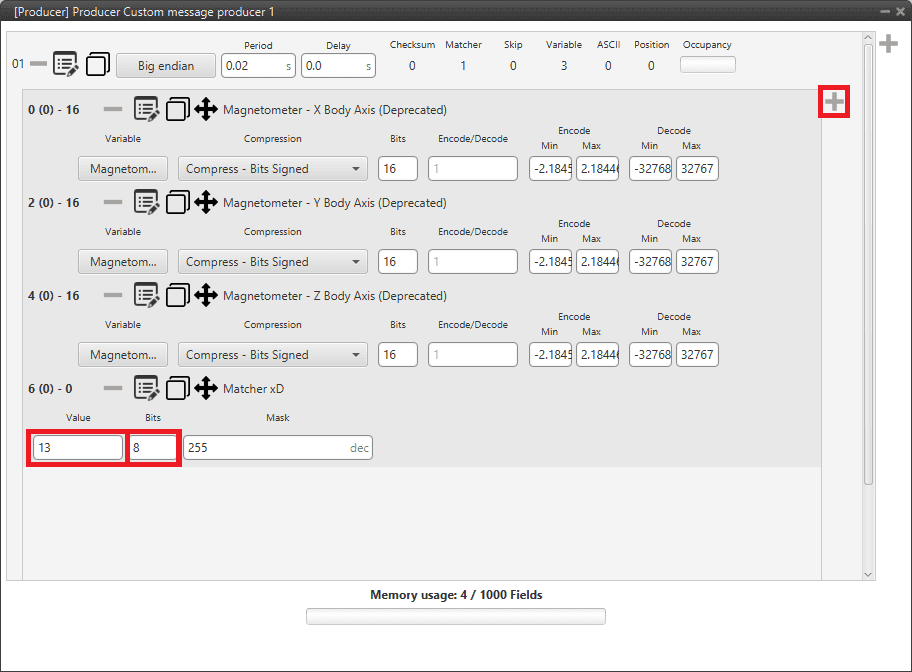
MEX PDI Builder - Custom message Matcher configuration Matcher Explanation
The matcher is a binary code employed to discard messages with errors. The length and the number represented can be edited clicking on
 of the matcher.
If the receiver does not receive the exact same matcher sequence, the entire message will be discarded, since it will be considered corrupted.
of the matcher.
If the receiver does not receive the exact same matcher sequence, the entire message will be discarded, since it will be considered corrupted.Warning
The order of variables and matcher must be the same.
For more information about custom messages and matchers, read Custom Messages types - Input/Output section of the 1x PDI Builder user manual.
-
Go to Input/Output menu → Serial panel.
Configure the SCI A, B or C tab accordingly to the consumer selected in step 1 (RS232-A, RS232-B or RS485-C). The configuration is the following:
Note
In this example, RS232-A was selected, so SCI A is configured.
Parameter Configuration Baudrate 115200 Length 8 Stop 1 Parity Disabled Use address mode Disabled 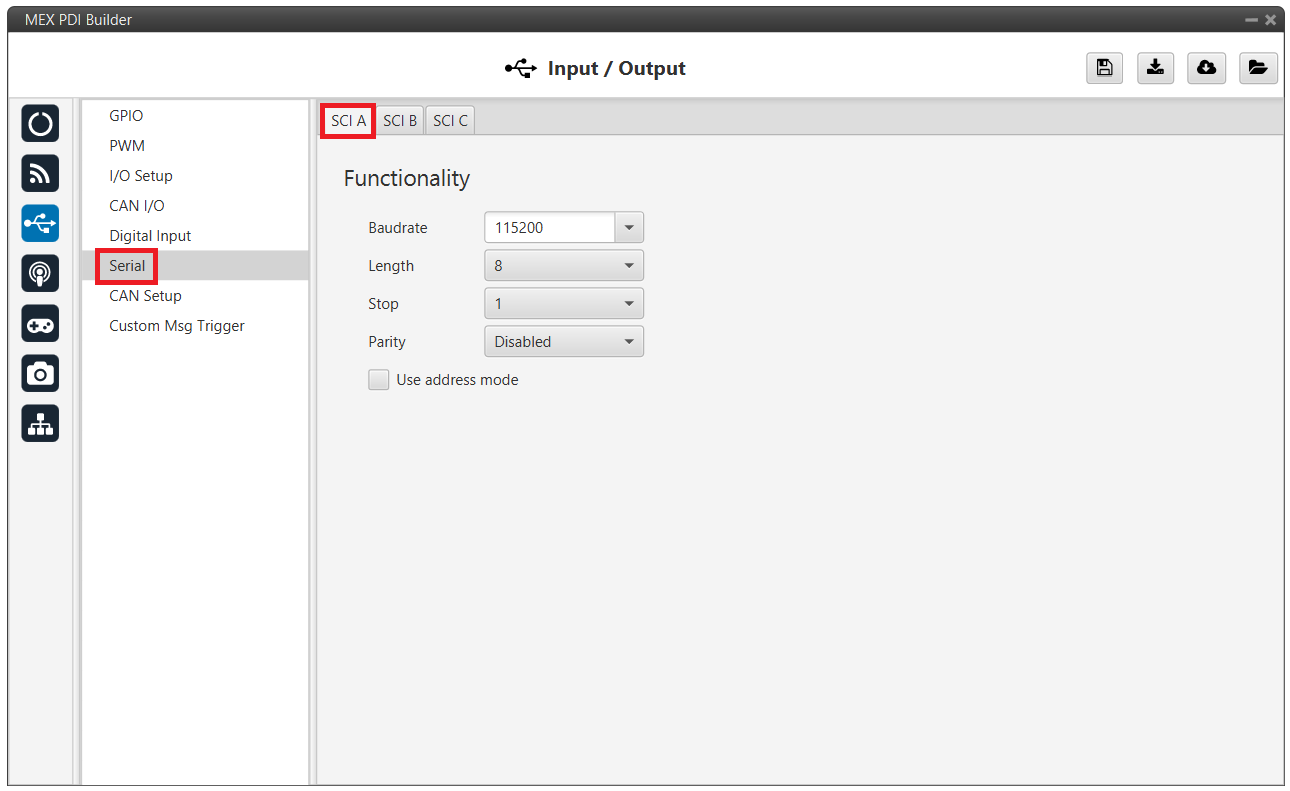
MEX PDI Builder - Serial configuration -
Once finished the configuration, click on
 to write the configuration in MEX.
1x PDI Builder side
The configuration for the Autopilot 1x is explained in MEX as External Magnetometer - Integration examples section of the 1x PDI Builder user manual.
CAN
MEX PDI Builder side
-
Go to Input/Output menu → I/O Setup panel.
Connect the Custom message producer 1 or 2 to the Serial to CAN 1, Serial to CAN 2 or Serial to CAN 3 port.
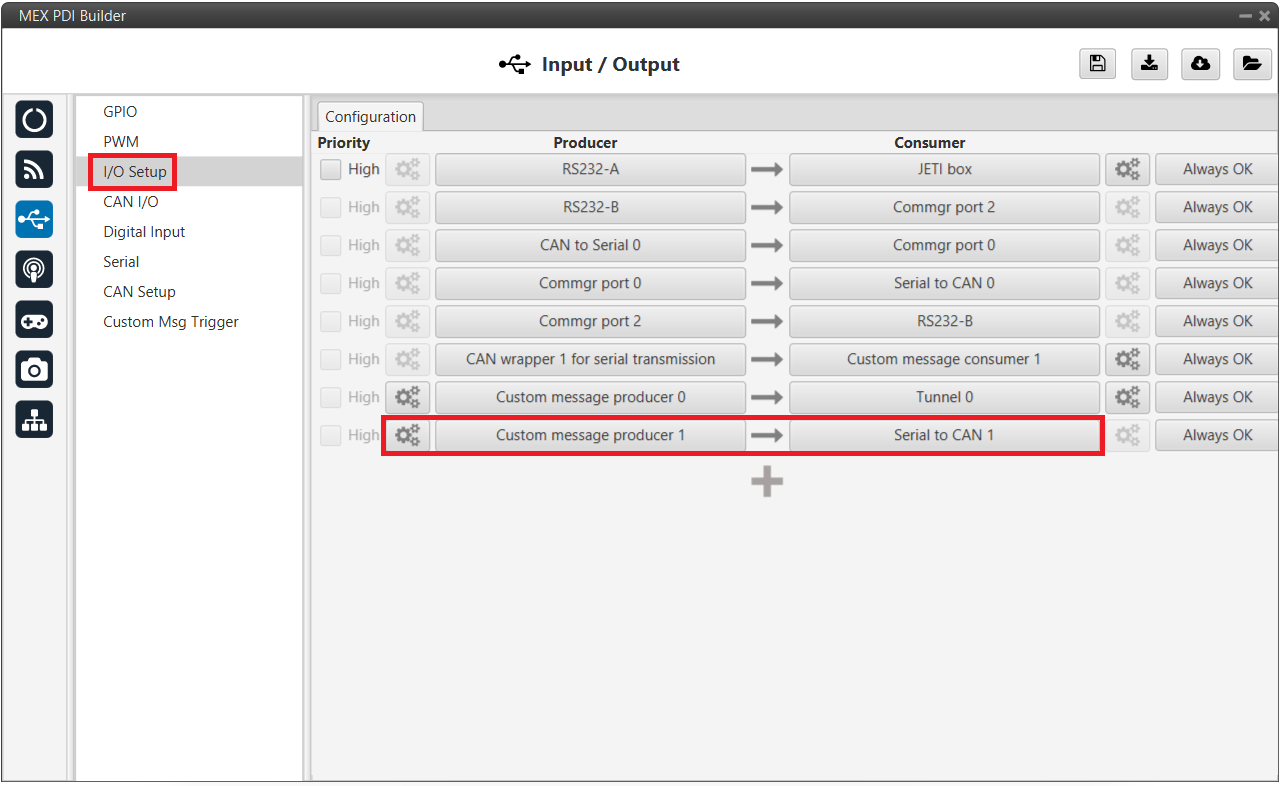
MEX PDI Builder - I/O Setup configuration -
Click on the
button of the chosen Custom message producer and add a new message , then configure it as Big endian and set a Period of 0.02 s.
MEX PDI Builder - Custom message configuration -
Click on
to add the 3 following Real variables: 313, 314 and 315. Then configure them according to the following table:
| Parameter | Configuration |
|---|---|
| Compression | Compress - Bits Signed |
| Bits | 16 |
| Encode | Min: -2.1845334E-4 / Max: 2.1844667E-4 |
| Decode | Min: -32768 / Max: 32767 |