UI
In this menu, the user can manage operation elements and system variables.
Operation elements
In this panel, users have to declare (rename) operation elements they wish to use in the configuration/operation. Once declared, the value of operation elements must be set in the Operation Panel of Veronte Ops software. Finally, users will now be able to reference them throughout the configuration, as in Automations menu.
Warning
Not setting the value of these operation elements in Veronte Ops will result in PDI errors if used within the autopilot configuration, e.g., if the operation element is defined as a parameter of a Block Program.
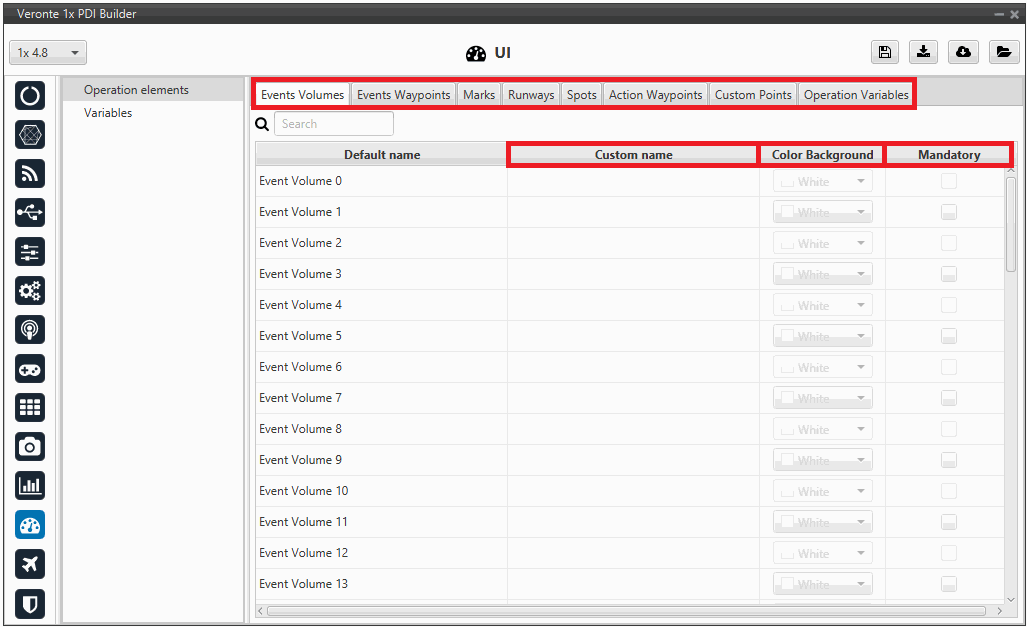
Operation elements are divided into 8 different types:
- Events Volumes: Defines three-dimensional areas in space. When the autopilot enters or exits these volumes, it can trigger a predefined event (e.g., activating a sensor, starting a procedure).
- Events Waypoints: Specific geographical points. When the vehicle reaches them, they trigger an action or an event. Unlike standard navigation Waypoints, these are focused on triggering a specific action.
- Marks: A mark is a reference that is placed in a patch and when the uav reaches it, an action takes place.
- Runways: These are the runways used during the take-off and landing phases.
- Spots: A spot is a kind of runway with an initial point, direction and azimuth.
- Action Waypoints: Navigation points that are not just passing points, but are intrinsically linked to the execution of a complex action by the system (e.g., initiating a search pattern, releasing a payload).
- Custom Points: Geographical points that the operator can define and use as needed, often as a dynamic reference or a point to define new variables in real-time.
-
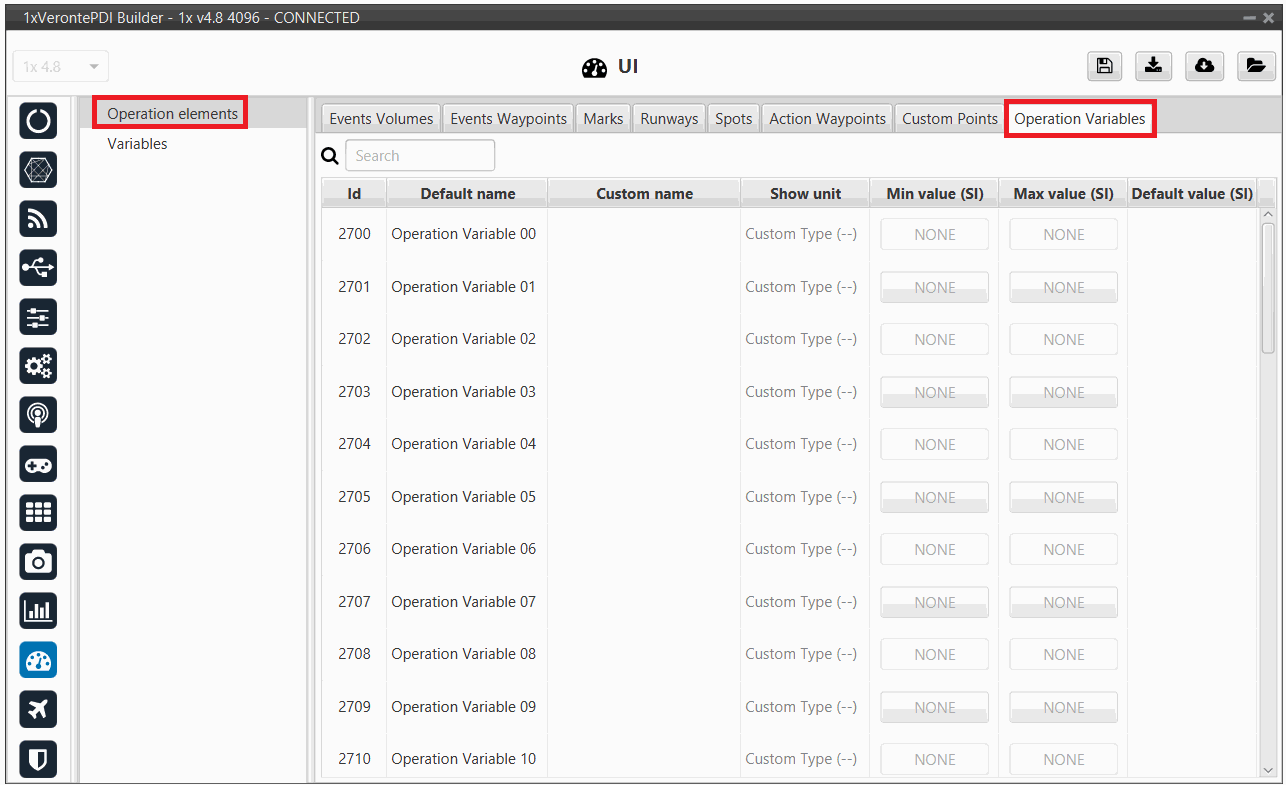
Operation Variables: An operation guidance point is a value of the operation, such as the cruise speed.
In addition to assigning a specific name, the user can also select the unit of this variable as well as its maximum and minimum values (in SI units).
An example is shown below:
Variables
In this panel, the user can find the name of all system variables, as well as their units and initial values. This is very useful, for example, in the case of 'User Variables'.
Variables are divided into 4 different tabs:
- Real: Real Variables, 32 bits.
- Unsigned: Unsigned integer variables, 16 bits.
- Bit: Bit variable, 1 bit.
-
Features: Features variables, 192 bits. These features variables are composed as follows:
Type Name Content Range Float64 latitude Latitude component scaled as 10-7 degrees (centimeter-level precision on the surface of the Earth) [–90, 90] * 10-7 scaled degrees Float64 longitude Longitude component scaled as 10-7 degrees (centimeter-level precision on the surface of the Earth) [–180, 180] * 10-7 scaled degrees Float64 height Height above the WGS84 ellipsoid in millimeters – Float64 latitude Latitude component scaled as 10-7 degrees (centimeter-level precision on the surface of the Earth) [–90, 90] * 10-7 scaled degrees
Note
- There are 1000 User variables available for each class (Bits, Unsigned and Real Vars).
- For a detailed list of all variables available in Veronte applications, consult the Lists of Variables - Lists of interest section of the 1x Software Manual.
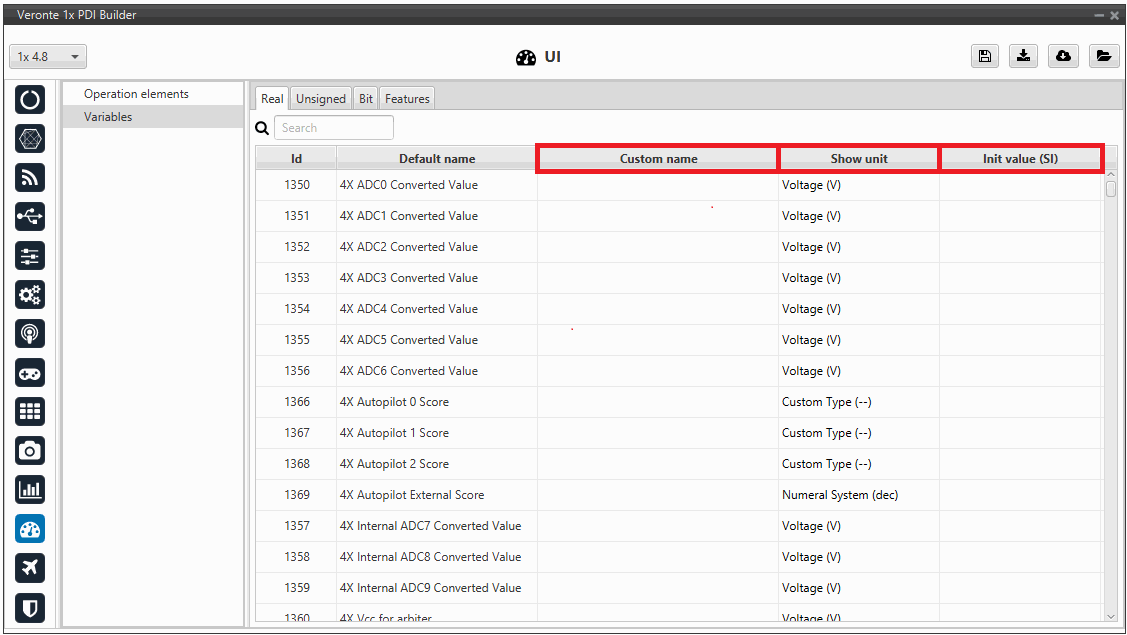
To set a custom name for one of the system variables:
- Click on the Custom Name cell of the desired variable and introduce the new name for it.
- When the name is introduced press Enter to store the name on the system.
- Press Save to save all changes.
Error
In this version, there is a maximum amount of characters that the user can use to rename variables, i.e. there is no limit per se but there is a maximum size of the configurable (xml size).
Besides changing their name, the user can also configure the measurement units of the variables, as well as the initial value (expressed in SI units) they will have each time the system (re)starts, using the Show unit and the Init Value (SI) cells.
By right-clicking on the Show unit cell, the user can select the desired units.
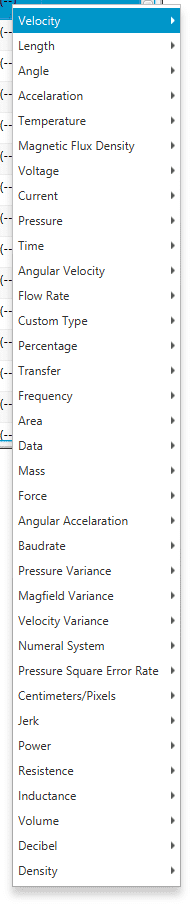
The table below shows all the available units in 1x PDI Builder.
| Variable Type | Units |
|---|---|
| Velocity | [m/s] [kt] [km/h] [mph] [ft/s] [mm/s] [ft/m] |
| Length | [m] [km] [mi] [NM] [yd] [ft] [in] [cm] [mm] |
| Angle | rad[-π; π] °[-180;180] °[0;360] [° ' “] [rad] rad[0; 2π] ° |
| Acceleration | [m/s²] [ft/s²] [in/s²] [g] |
| Temperature | [K] [°C] [°F] |
| Magnetic Flux Density | [T] [mG] [gauss] [nT] |
| Voltage | [V] [mV] |
| Current | [A] [mA] |
| Pressure | [Pa] [kPa] [bar] [mbar] [psi] [mmHg] [at] [atm] |
| Time | [s] [min] [h] [μs] [ms] |
| Angular Velocity | [rad/s] [rad/m] [rad/h] [rps] [rpm] [rph] [°/s] |
| Flow Rate | [m³/s] [gal/s] [gal/h] [l/s] [l/h] |
| Custom Type | [- -] |
| Percentage | [x1] [%] |
| Transfer | [pkts/s] |
| Frequency | [Hz] [mHz] [kHz] |
| Area | [m²] [cm²] [mm²] [km²] [mile²] [ft²] [yd²] |
| Data | [bit] [byte] [KB] [GB] [bytes/s] |
| Mass | [kg] [g] [tonnes] [lbs] [oz] |
| Force | [N] [kN] [lbf] [pdl] |
| Angular Acceleration | [rpm/s] [rad/s²] [rad/m²] [rad/h²] [°/s²] [°/m²] [°/h²] |
| Baudrate | [Bd] [kBd] [MBd] |
| Pressure Variance | [Pa²] |
| Magfield Variance | [T²] |
| Velocity Variance | [(m/s)²] [(cm/s)²] [(mm/s)²] |
| Numeral System | [bin] [octal] [dec] [hex] |
| Pressure Square Error Rate | [Pa²/s] |
| Centimeters/Pixels | [cm/pixel] |
| Jerk | [m/s³] |
| Power | [W] [kW] [Kgm/s] [erg/s] [CV] |
| Resistence | [Ω] |
| Inductance | [H] |
| Volume | [m³] [dm³] [mm³] [L] [mL] |
| Decibel | [db] |
| Density | [kg/m³] |
© 2026 Embention. All rights reserved.